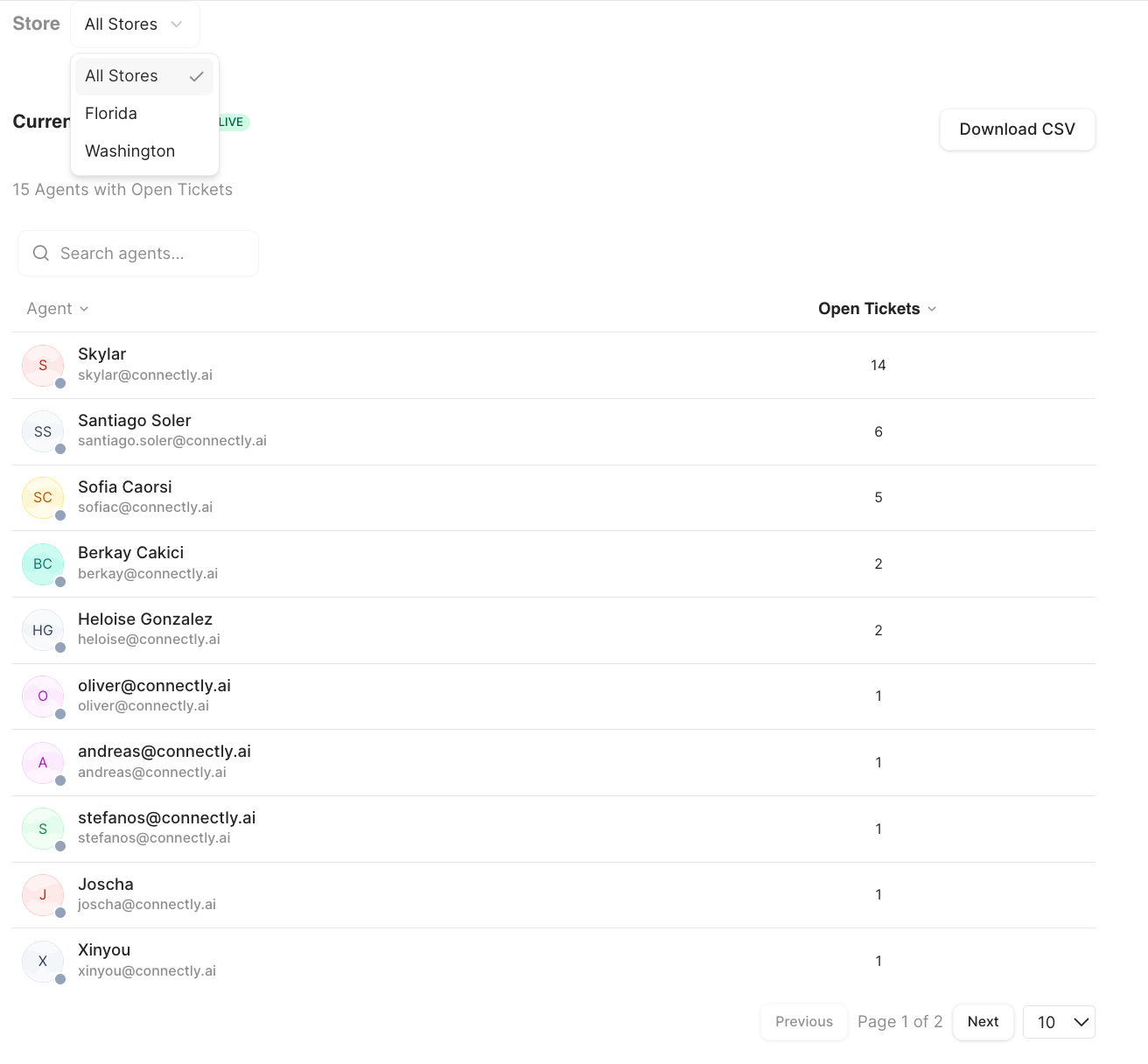
Current Open Tickets
A live snapshot of open tickets by agent — it’s not tied to the date range. It shows each agent and how many open tickets they’re holding, so you can spot who’s overloaded at a glance.- Click an agent to see that agent’s open tickets, and open any conversation from there.
- If your business uses teams, you can Group by Team to see open tickets organized by team (with buckets for conversations with no team or a missing assignment).
- Search agents and Download CSV are available.
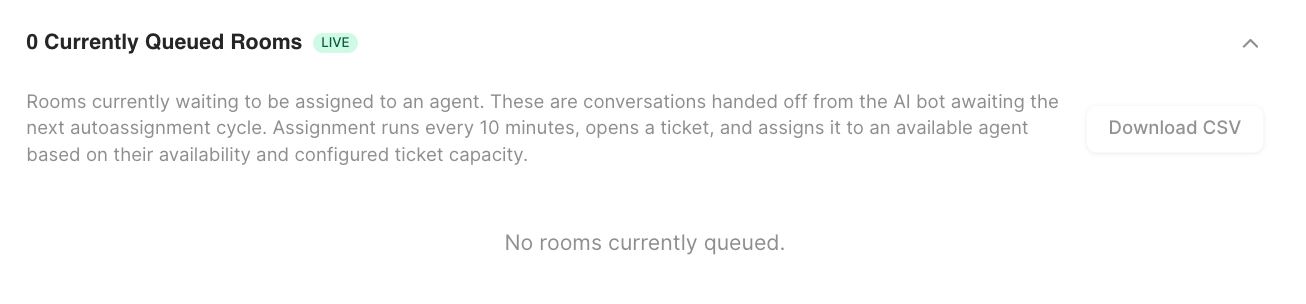
Currently Queued Rooms
A live table of conversations waiting to be automatically assigned to an agent. It refreshes on its own and shows:
Rooms wait here for the next auto-assignment cycle. Click the eye icon to open a conversation. This view is relevant when Ticket Routing is set to automatically assign conversations.
Auto-Assignment Performance
This section measures how well automatic assignment is working over the selected period. (It’s hidden when there were no handovers in the period.) KPI cards: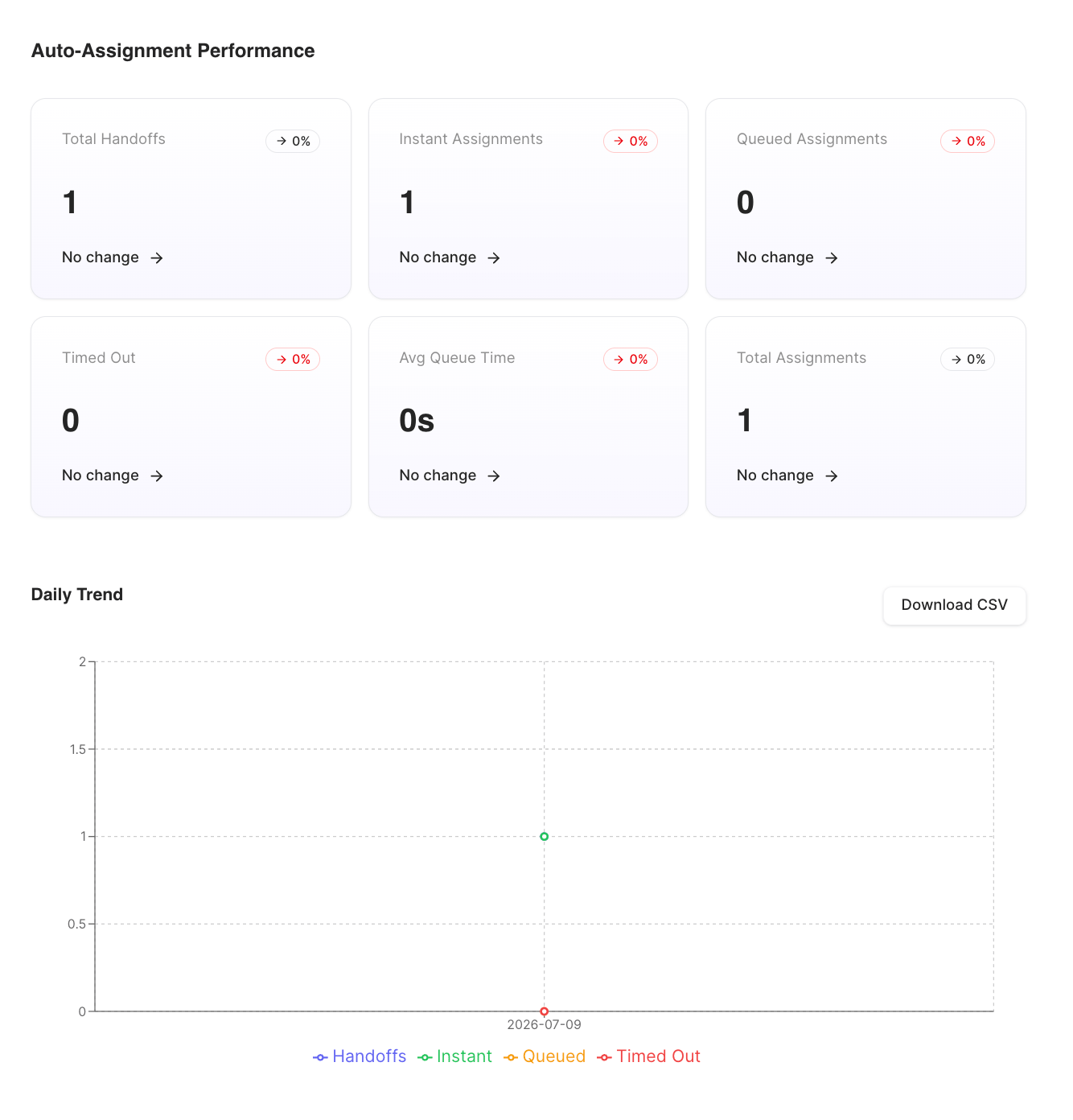
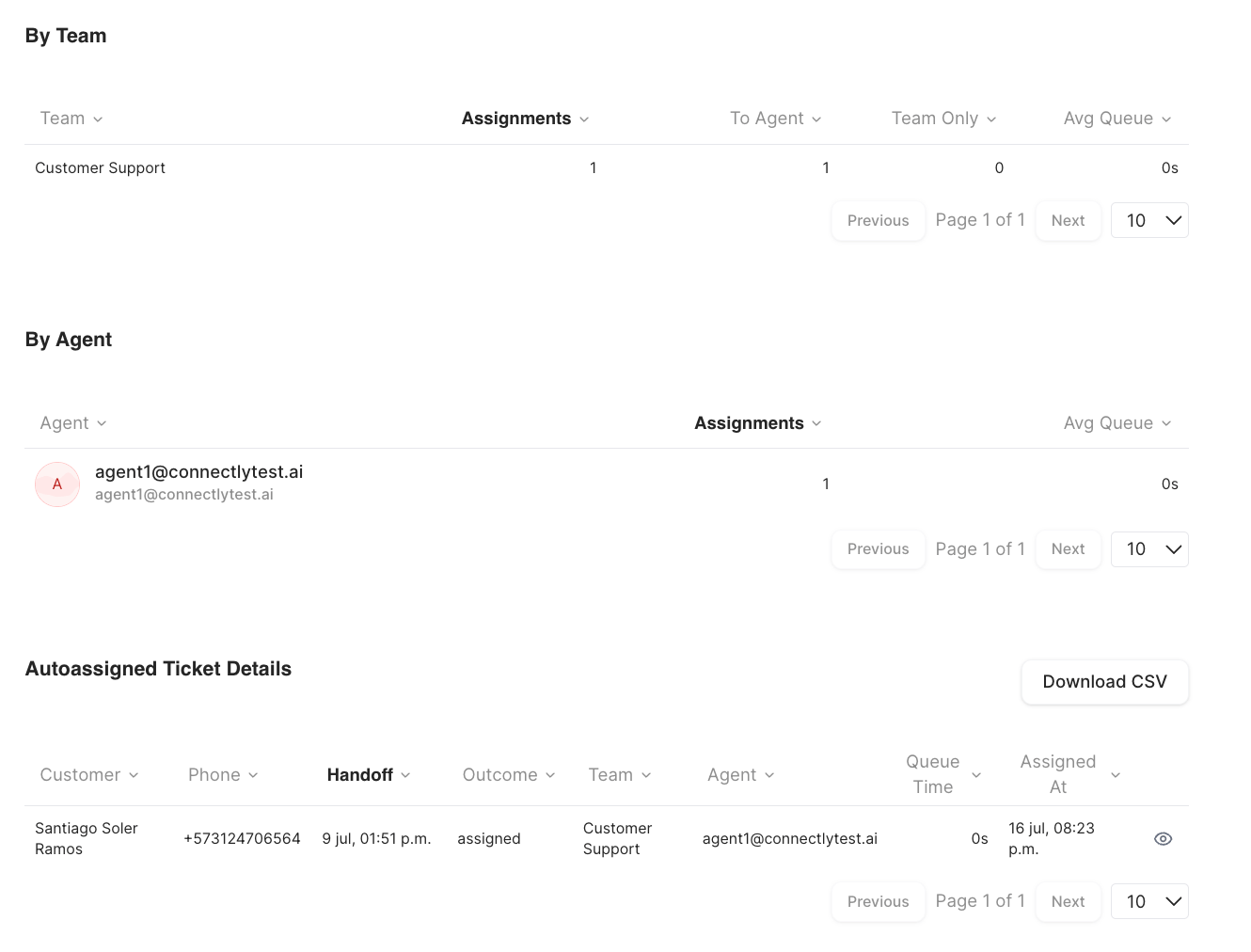
- Daily Trend — a chart of handoffs, instant, queued, and timed-out assignments per day.
- By Team — Team, Assignments, To Agent, Team Only, Avg Queue.
- By Agent — Agent, Assignments, Avg Queue.
- Autoassigned Ticket Details — a per-ticket table (customer, handoff, outcome, team, agent, queue time, assigned-at) with an eye icon to open the conversation.