
Ways to reply
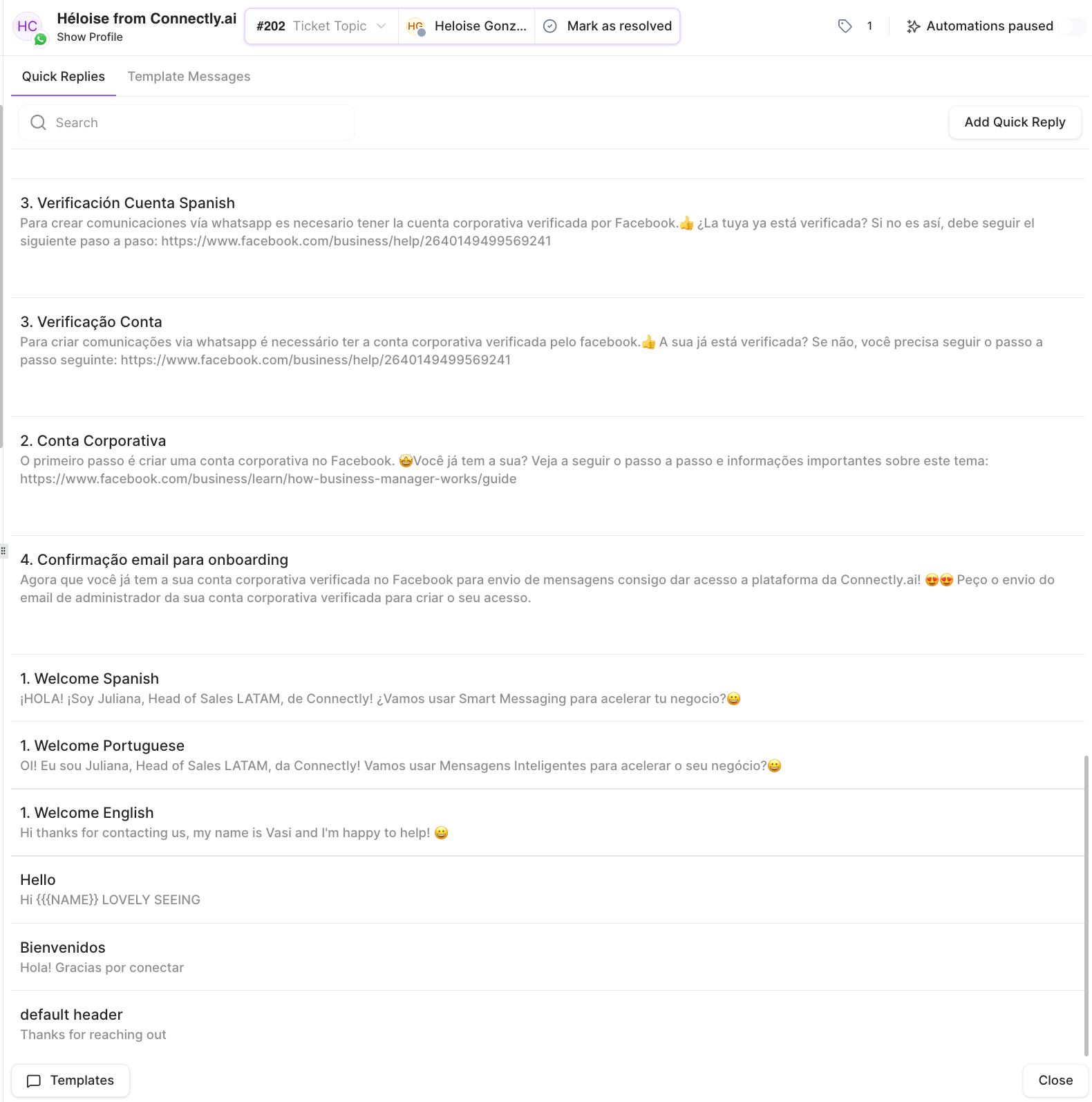
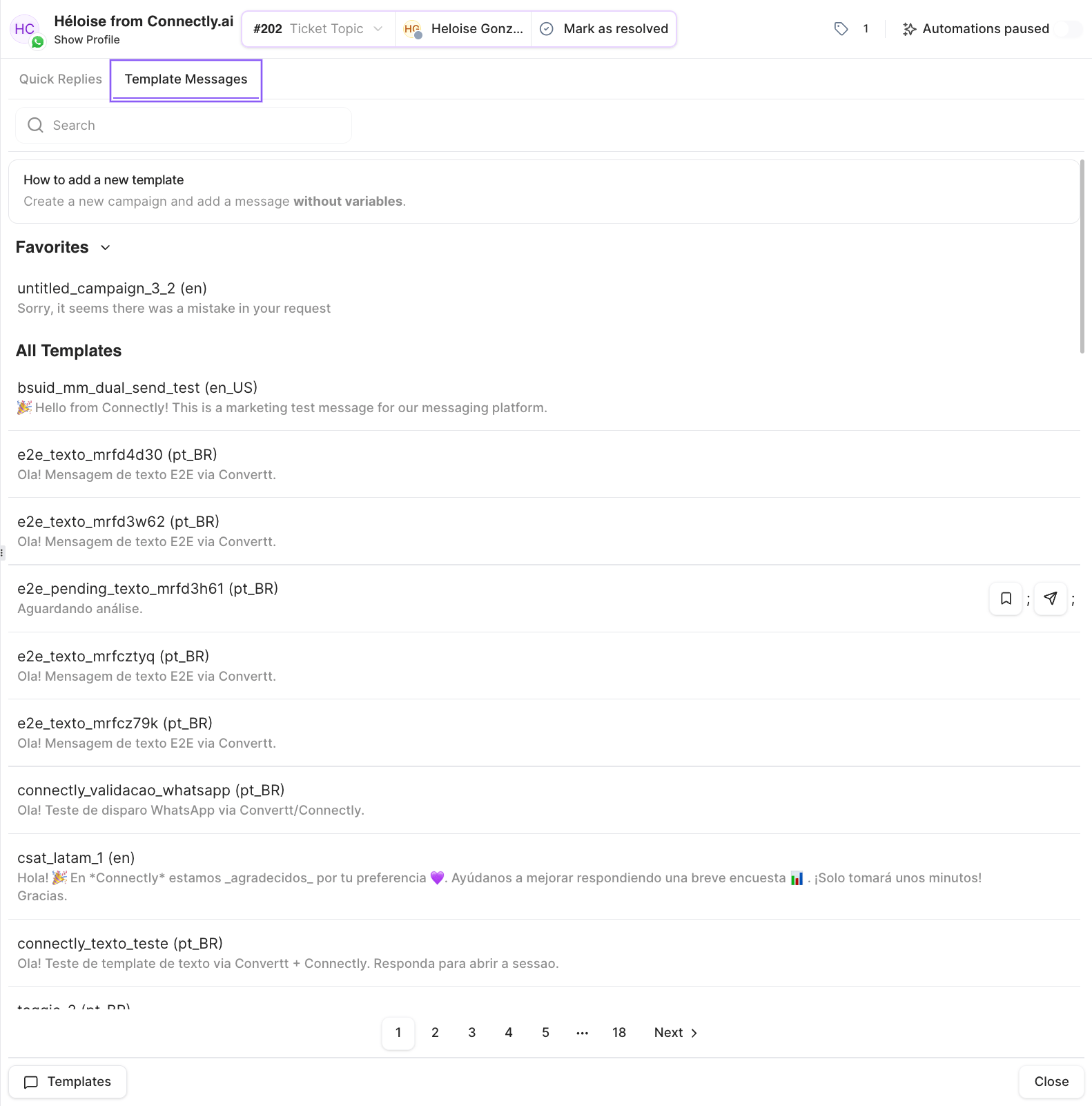
The Templates button opens your message library, with Quick Replies and Template Messages tabs:
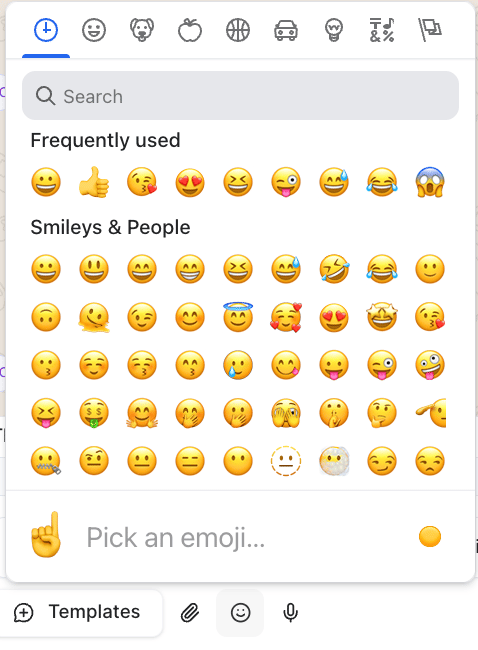
React and reply to a specific message
- Reactions — add an emoji reaction to a specific message in the thread.
- Reply / quote — reply to a specific earlier message so the customer sees the context you’re responding to.
Send behavior
Choose whether pressing Enter sends your message or adds a new line. This is a personal preference — see Send Behavior in Inbox Settings.The send button adapts to the ticket
The send button’s label tells you what will happen when you send, based on the ticket’s state:The session window
For channels like WhatsApp, you can reply freely within the customer’s active session window. The composer shows a countdown of how long you have left to respond with a regular message. Once the window closes, you’ll need an approved template to re-engage the customer.