
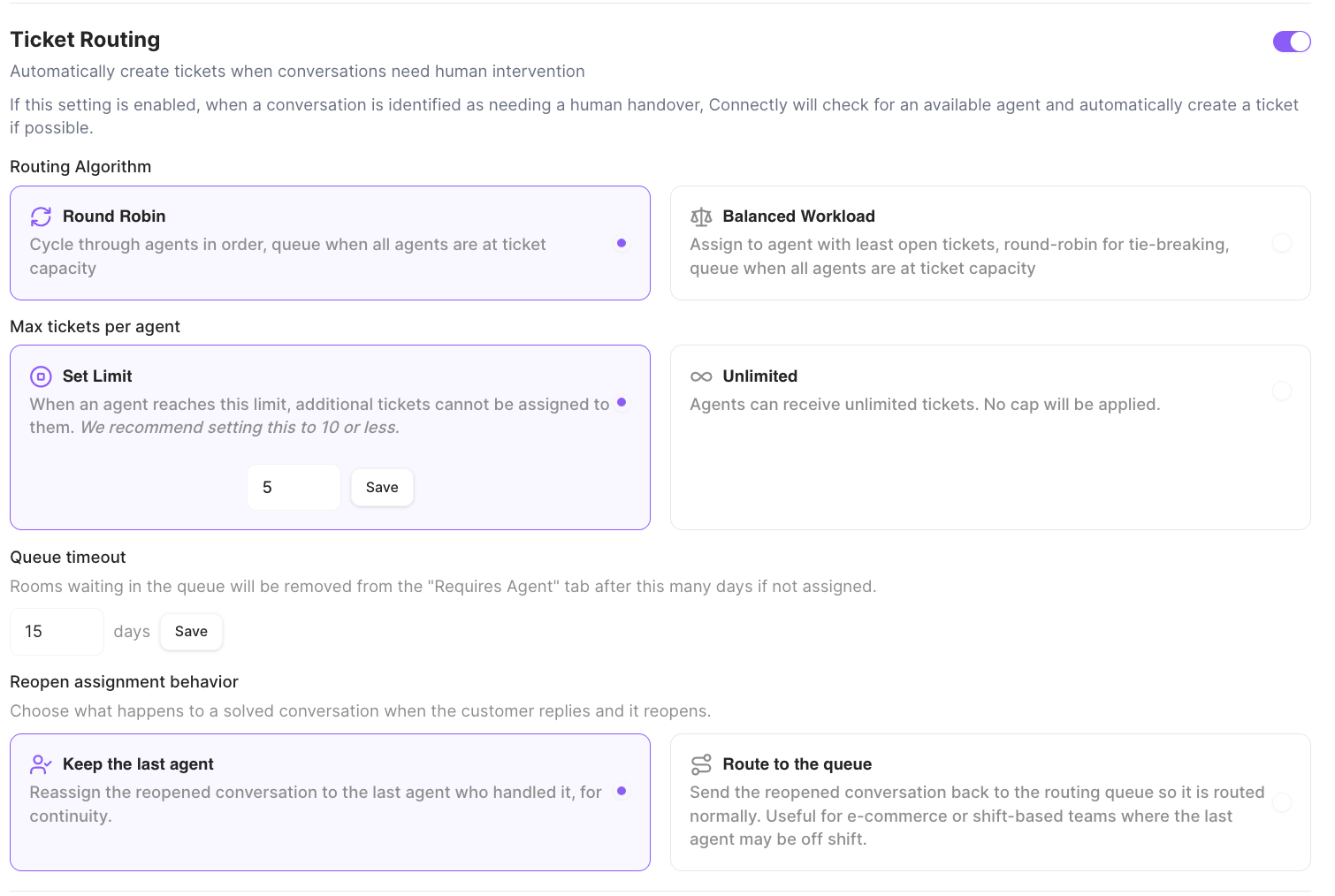
Automatically create tickets when conversations need human intervention
If this setting is enabled, when a conversation is identified as needing a human handover, Connectly will check for an available agent and automatically create a ticket if possible.
How it connects to agent handover
Ticket Routing is the bridge between a conversation that needs a person and an agent actually picking it up. When a conversation is identified as needing a human handover, Connectly looks for an available agent and — if it finds one — creates a ticket and assigns it automatically.Where conversations are routed
Ticket Routing directs each conversation using one of two scopes:
With Team Routing, you decide which team (or store) handles each type of handover in your agent configuration, and you can route customers to their nearest store location. That setup lives in its own article:
Teams & Stores
Organize agents into teams, connect teams to store locations, and route conversations to the right group.
Routing scopes, teams, and store routing are advanced features that may need to be enabled for your business. If you only see agent-based routing, contact your Connectly Account Manager.
Routing Algorithm
Choose how Connectly picks which agent gets the next ticket.Max tickets per agent
Control how many open tickets a single agent can hold at once.
When every eligible agent is at capacity, new tickets wait in the queue until someone frees up.
Queue timeout
Rooms waiting in the queue will be removed from the “Requires Agent” tab after this many days if not assigned.Enter the number of days and click Save. The default is 15 days.
Reopen assignment behavior
Choose what happens to a solved conversation when the customer replies and it reopens.