Team visibility
Each team has a visibility model:Create a team
Click Add Team to see the ways to create teams. Add Team Manually opens the create dialog; the other options create location-based teams in bulk (see Stores).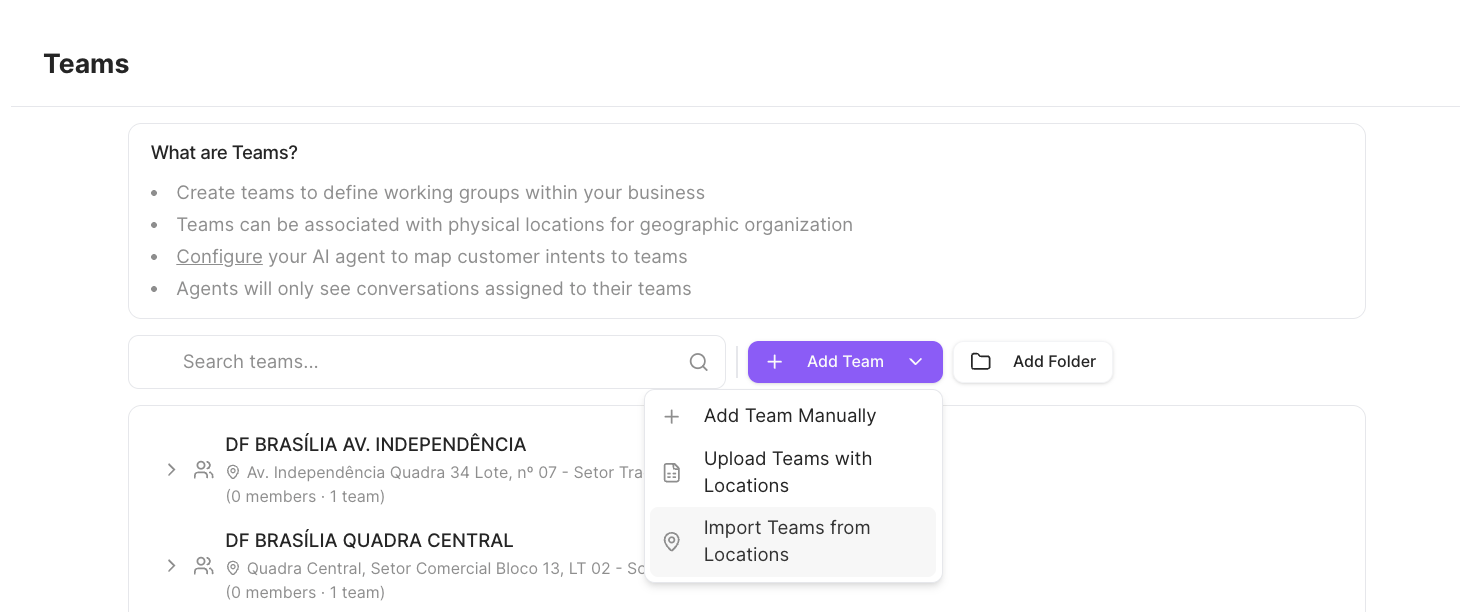
- Name (required) — the team’s name.
- Description (optional).
- Location Address (optional) — links the team to a physical store location, turning it into a store.
- Folder (optional) — place the team inside a folder for organization.
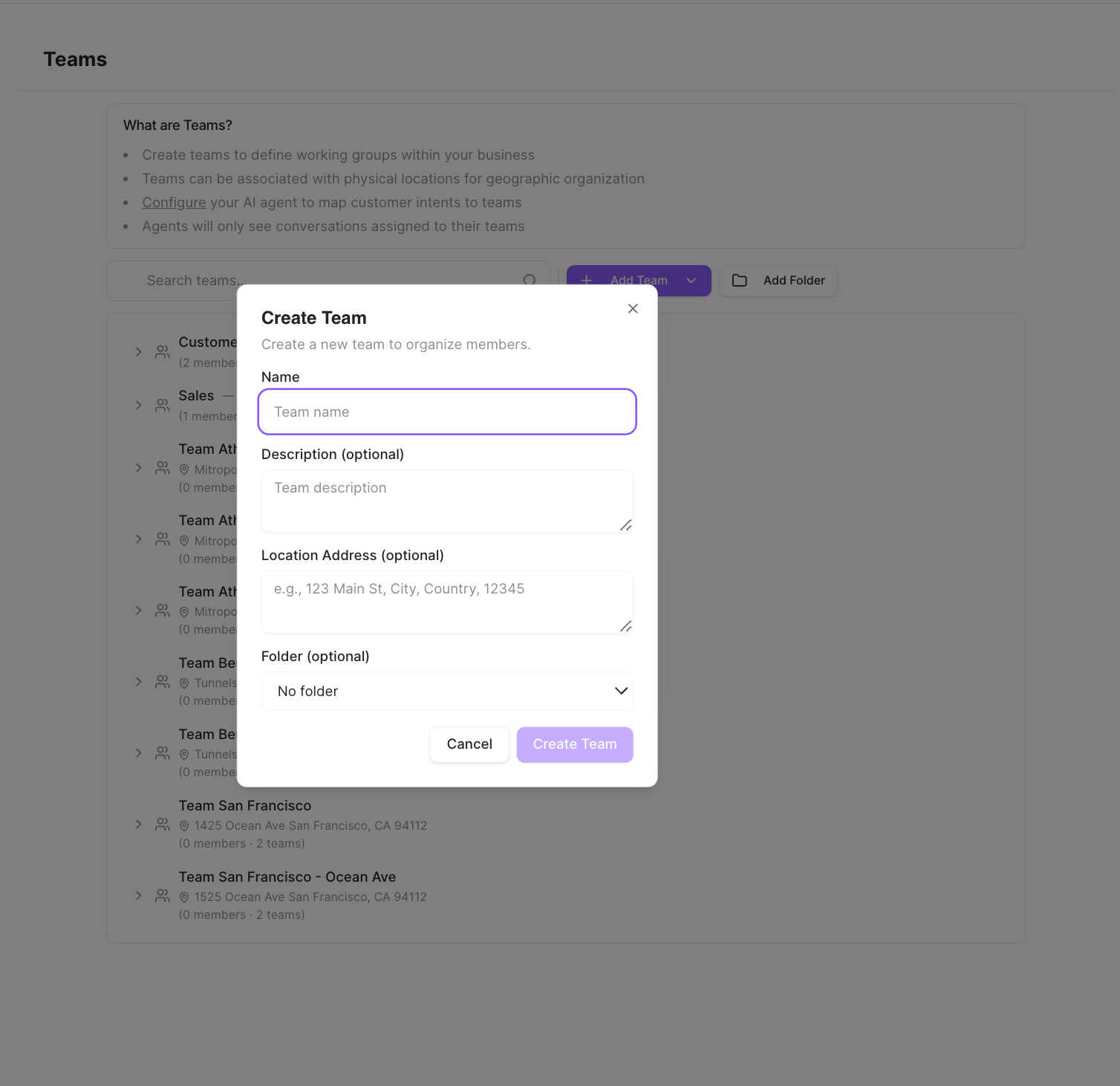
A team can live in a folder or be tied to a location, but not both at once.
Folders
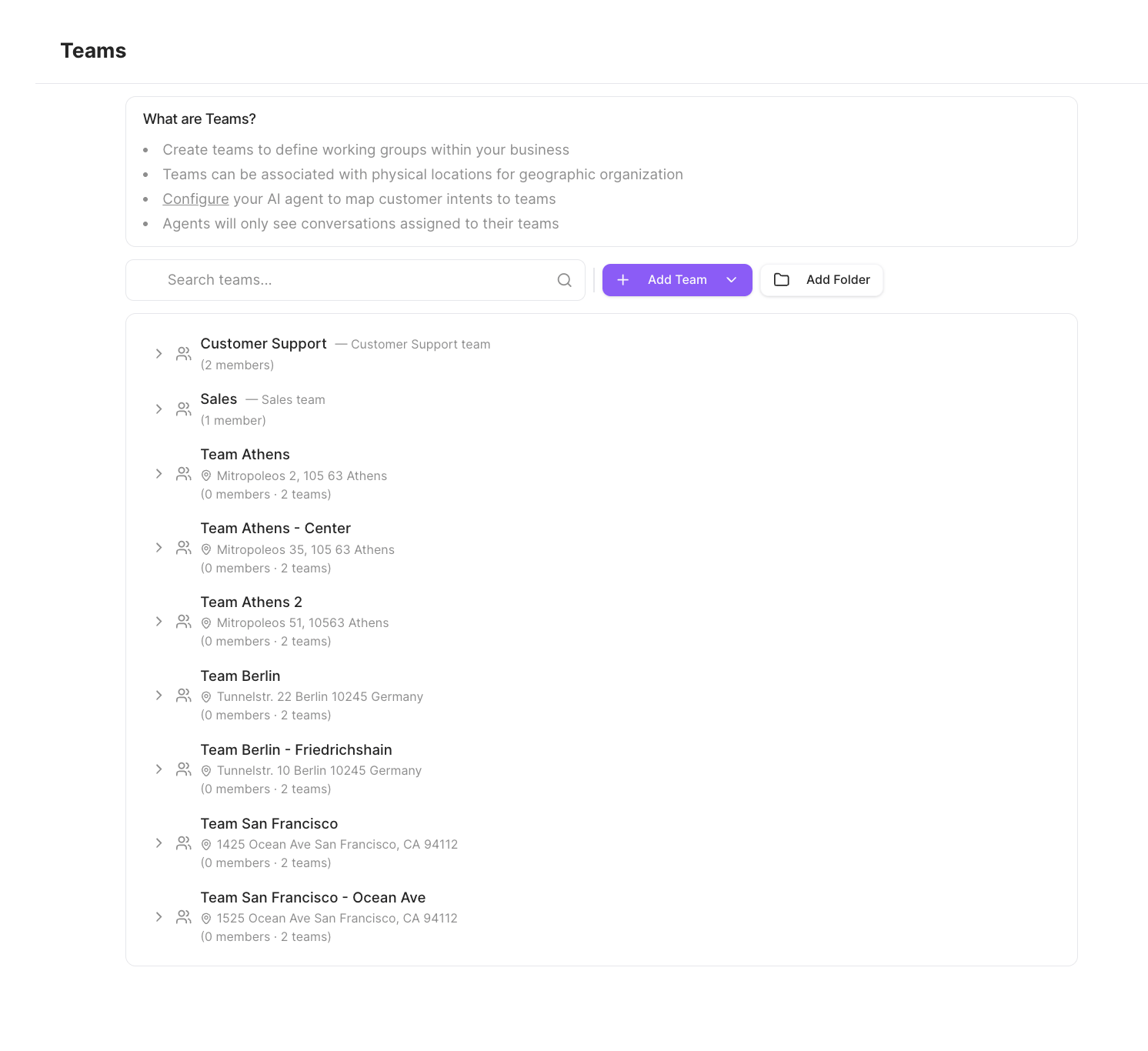
Folders visually group teams on the Teams page. A folder only has a name — it has no members and doesn’t receive conversations itself. Use Add Folder to create one.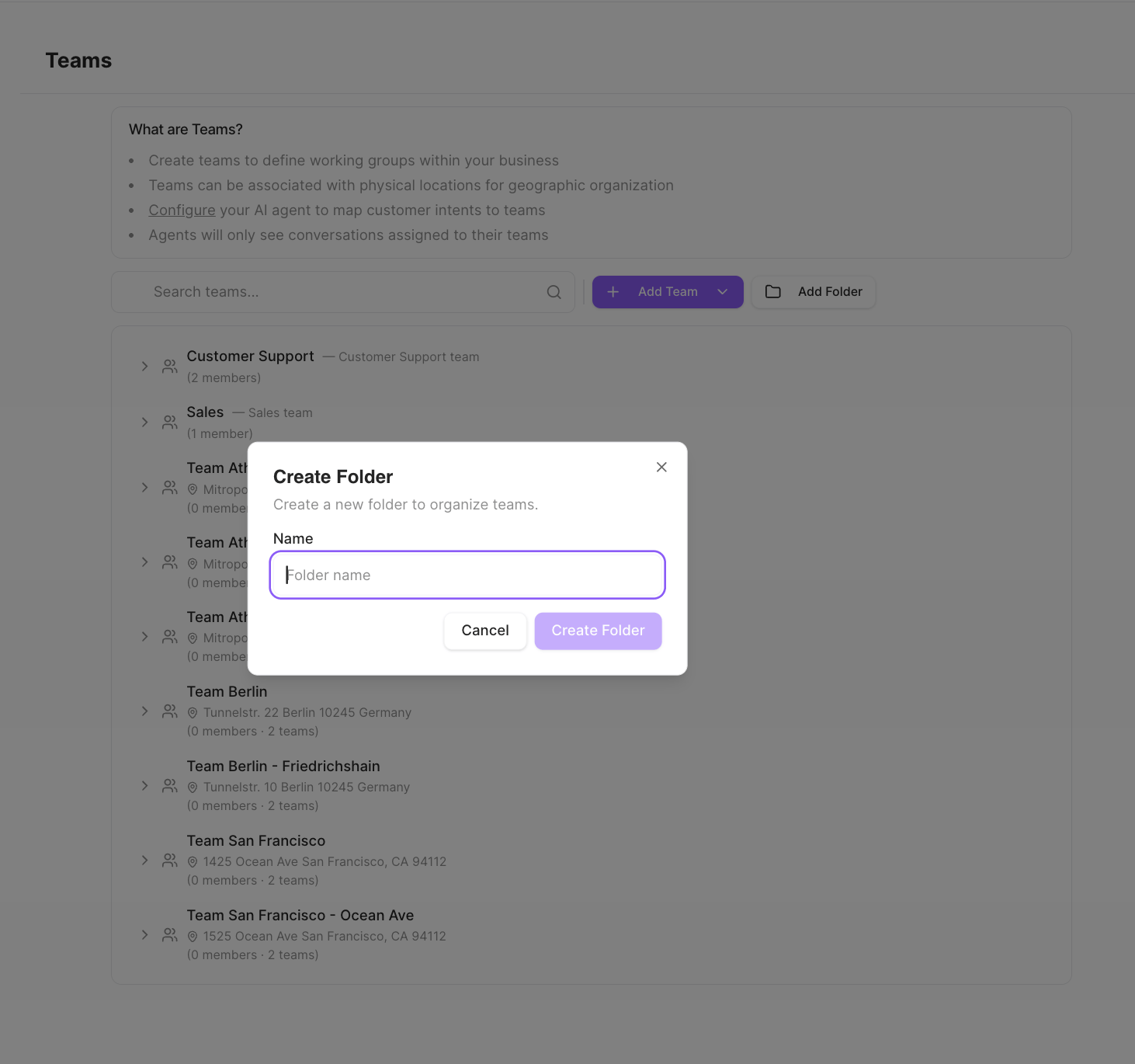
Members
Open a team’s menu to Add Member, Edit Team, or Delete Team.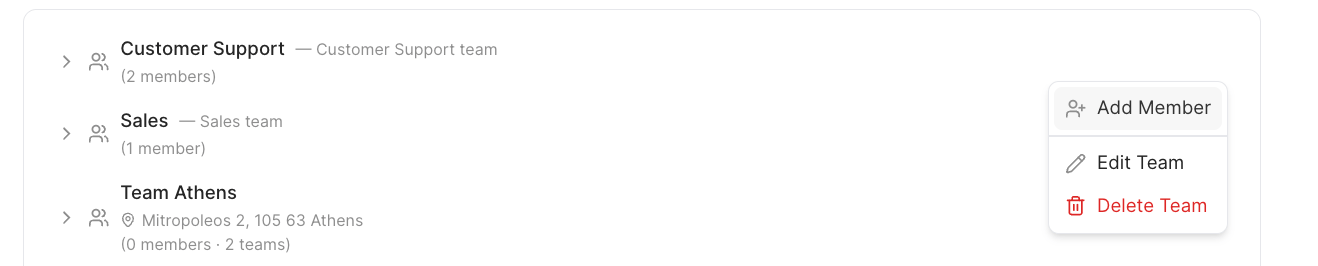
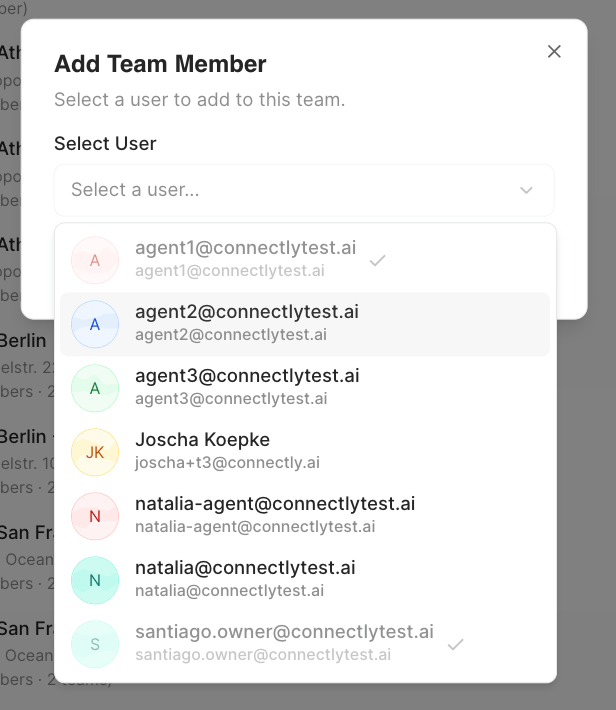
There are no team-level roles. Permissions come from a person’s business role —
workspace owners act as admins and can manage every team, while other agents
simply belong to the teams they’re added to.
Edit or delete a team
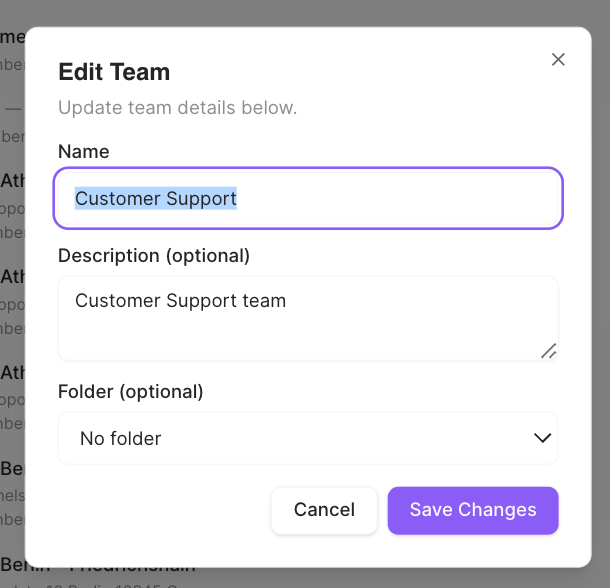
Use Edit Team to update its name, description, or folder, then Save Changes. Delete Team removes it.