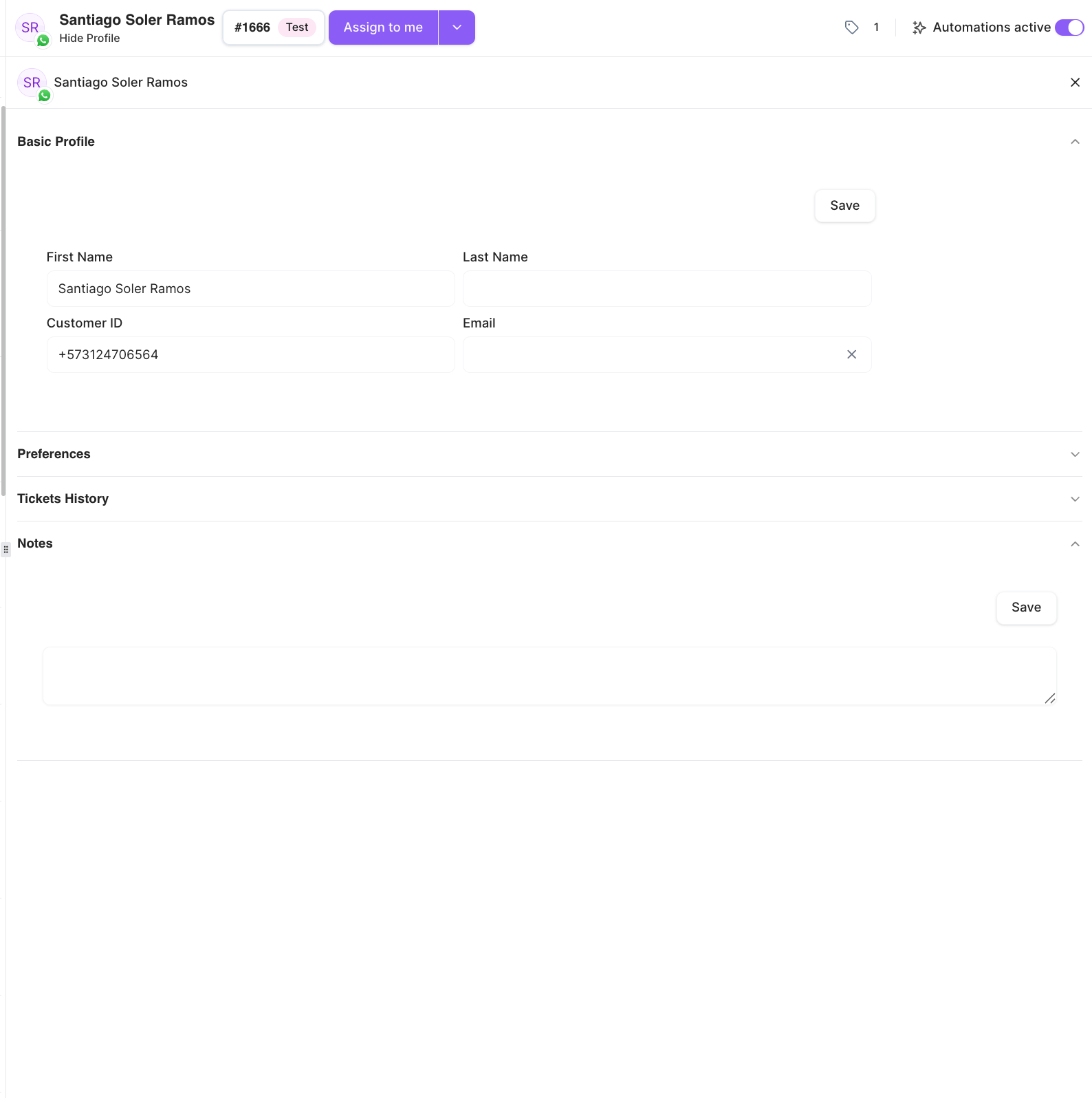
Basic Profile
The customer’s core details, which you can edit and save:- First Name
- Last Name
- Customer ID — the customer’s phone number (or
@usernamefor WhatsApp contacts who hide their phone).
+ in Customer ID, it’s validated as a phone number.
Notes
Notes is a shared free-text field for anything your team should know about this customer. Type your note and save it.Notes are a single shared field on the customer’s profile — they’re visible to everyone on your team who opens this customer, not private to you. There’s no separate list of individual notes; you’re editing one shared note.
Tickets History
A read-only list of the customer’s past tickets. Each entry shows the ticket number, date, status, topic, who it was assigned to, and its AI summary. Click an entry to jump to where that ticket started in the conversation.Shopify Profile
If the customer is connected to a Shopify channel, this section shows their Shopify details — Name, Email, ID, Last Order, Total Spent, and Total Orders. You can also use Update Shopify Profile to search Shopify (by ID, last order number, or email) and link the right customer record.Preferences
This section is reserved for future use — it currently shows No preferences for now.Applying tags, assigning an agent, and toggling automations are done from the conversation’s action bar, not this panel. See Working a conversation and Managing tickets.