Use cases
Welcome messages
Welcome messages
Greet new customers when they subscribe or make their first purchase, setting a positive tone for future interactions.
Abandoned cart reminders
Abandoned cart reminders
Send reminders to customers about items left in their cart to reduce abandonment rates and recover lost sales.
Order confirmations & shipping updates
Order confirmations & shipping updates
Send automated order confirmations and real-time shipping updates to keep customers informed post-purchase.
Customer thank you & feedback
Customer thank you & feedback
Build loyalty with a personalised thank you message after purchase, and follow up with a feedback or survey request.
Birthday & anniversary messages
Birthday & anniversary messages
Foster personal relationships by celebrating customer birthdays and first-purchase anniversaries with special messages and promotions.
Requirements
- A Connectly account with a working WhatsApp business number
- A Klaviyo account
- An e-commerce or CRM platform integrated with Klaviyo (e.g. Shopify, Salesforce, Magento, Wix, WooCommerce — see the full list)
Setup
Step 1: Get your Connectly API key
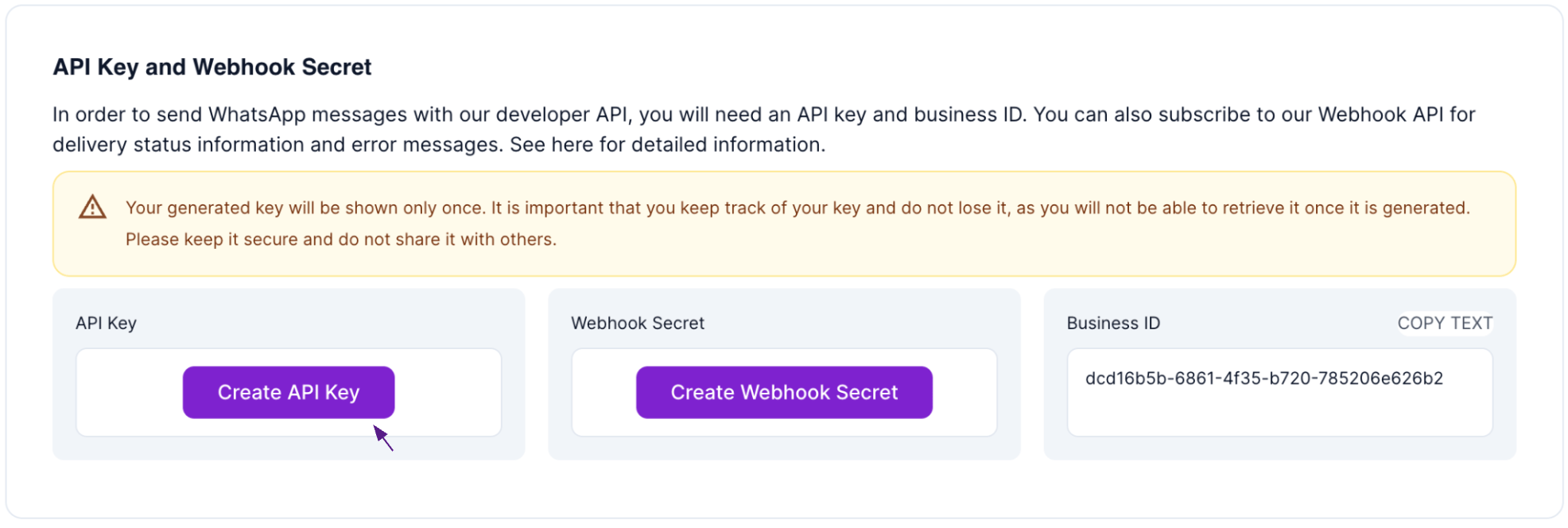
In the Connectly platform, go to Settings → General and scroll down to API Key and Webhook Secret. Click Generate API Key.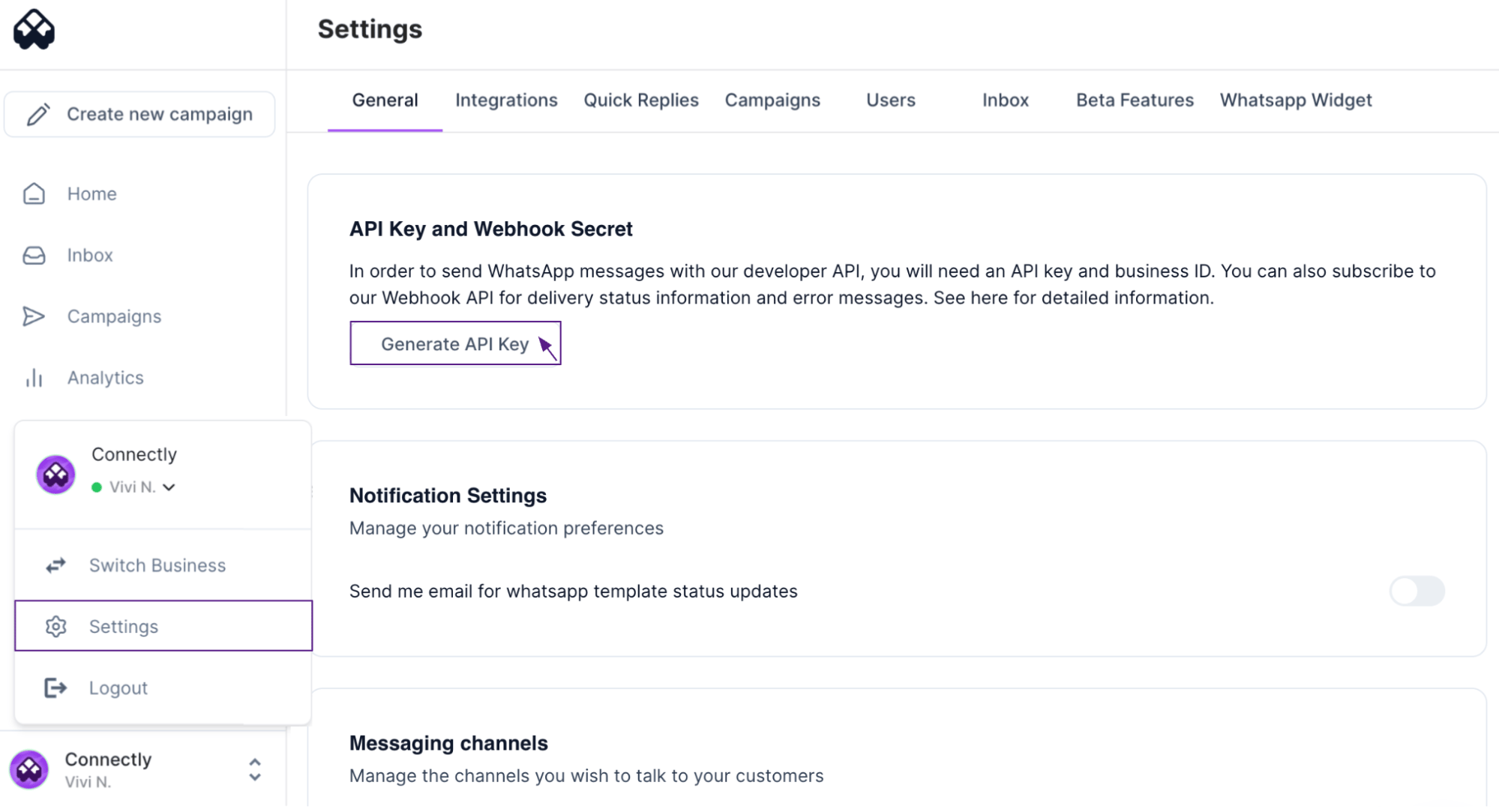
Step 2: Get your campaign destination URL and JSON body
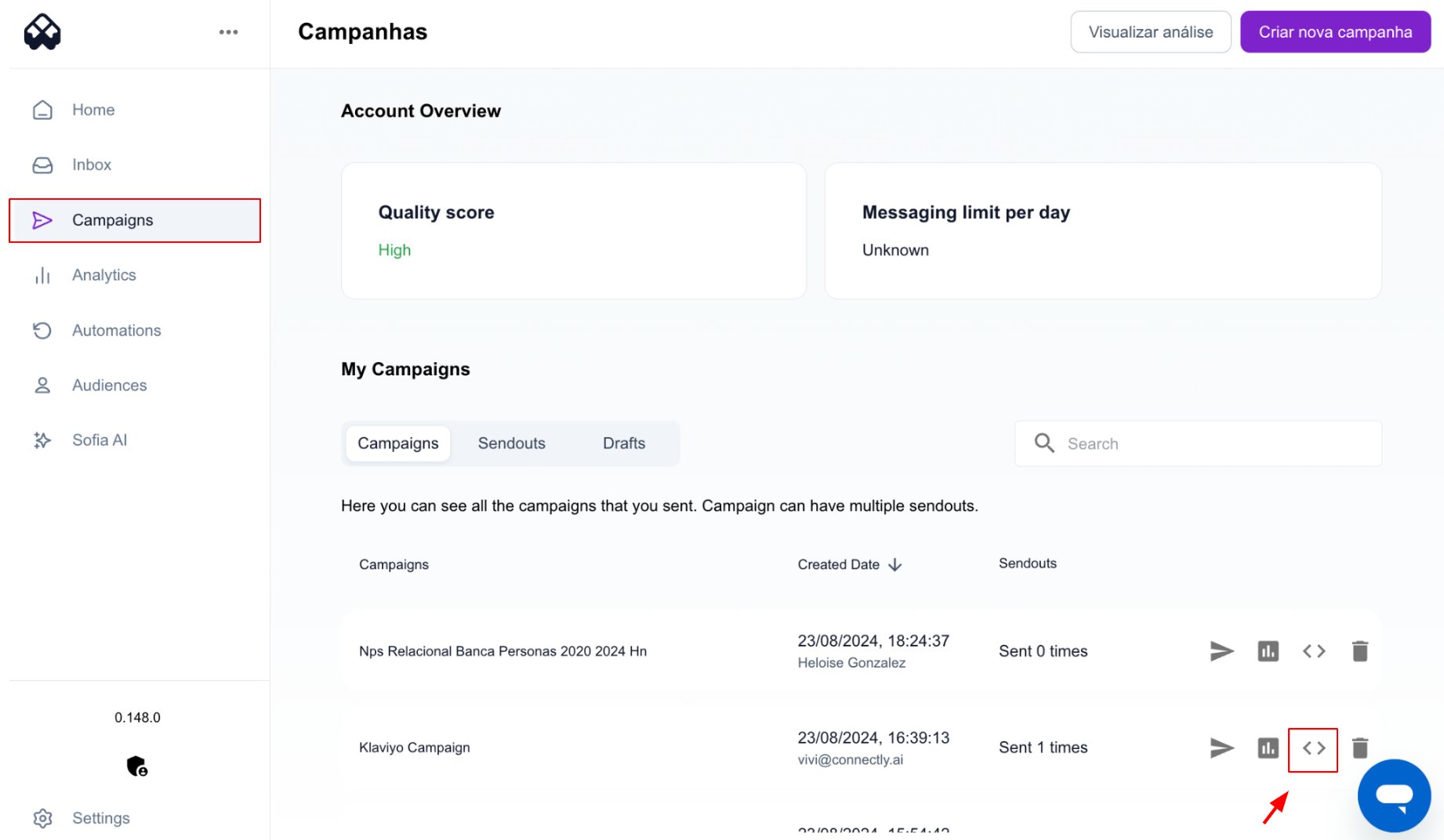
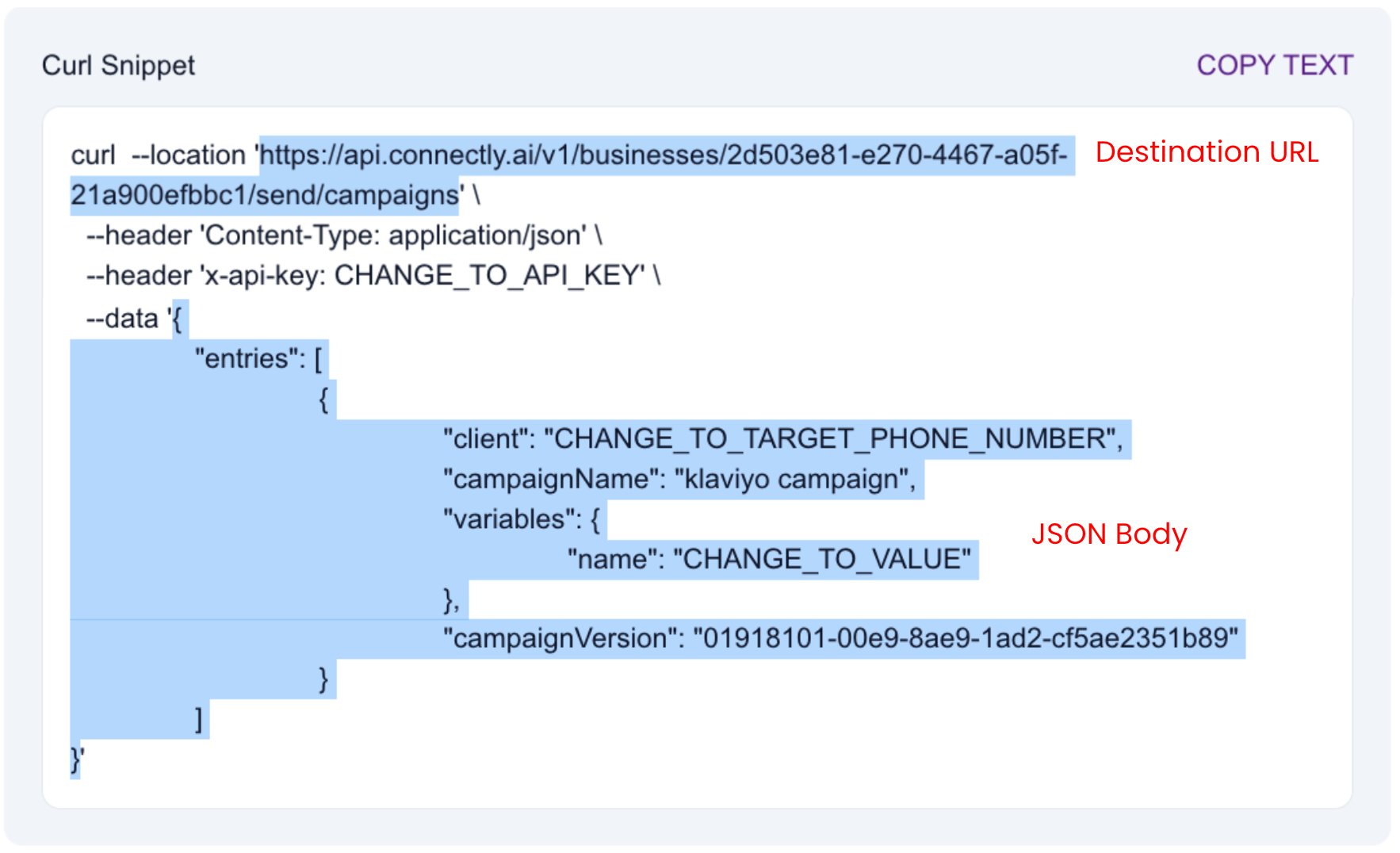
You need the campaign’s endpoint URL and JSON payload to configure the Klaviyo webhook.- New campaign
- Existing campaign
When setting up a new campaign, select “Use the Connectly API” on the Choose Audience step and click Next.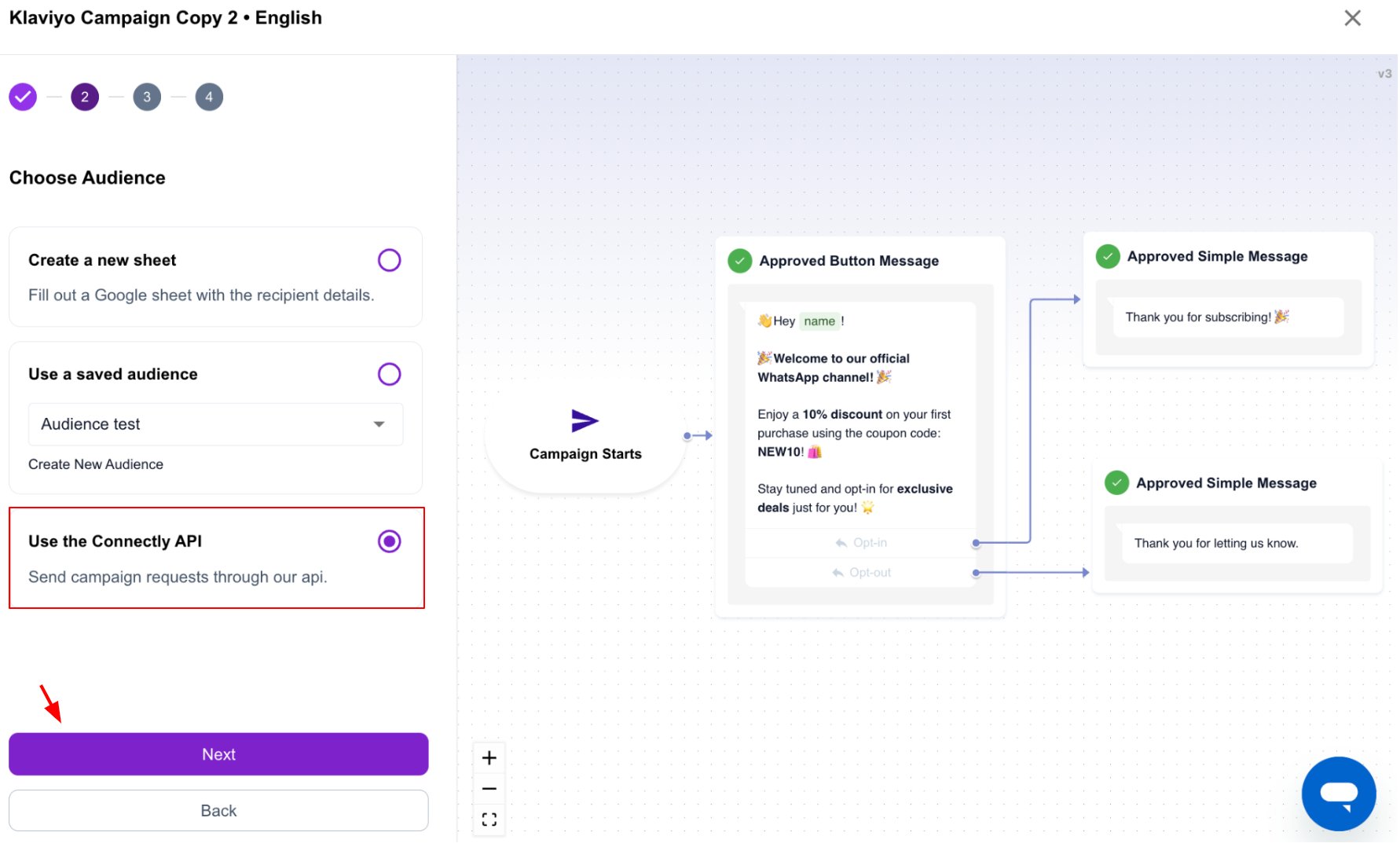

Step 3: Create a flow in Klaviyo
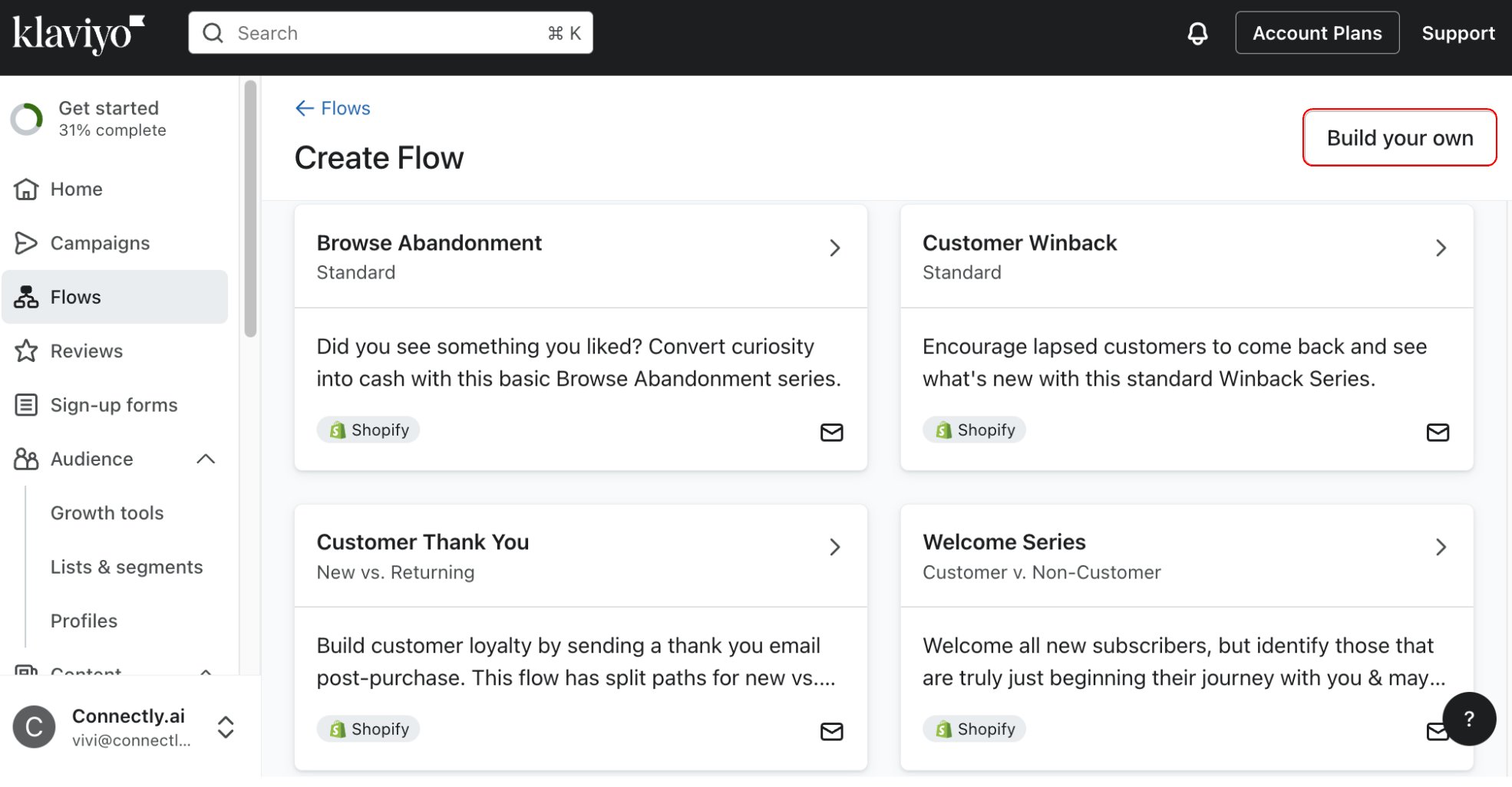
Log into Klaviyo, navigate to Flows, and click Create Flow.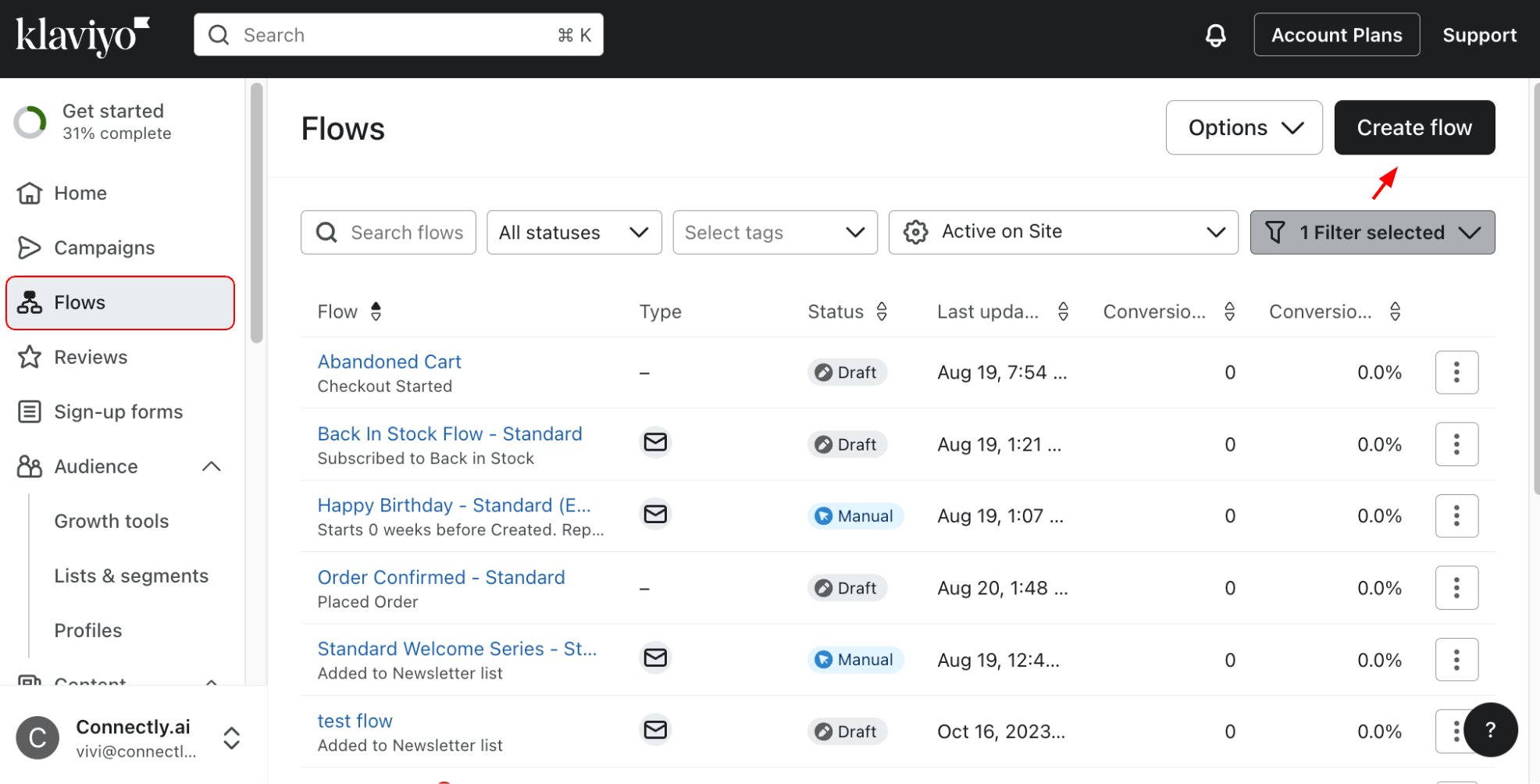
Step 4: Add and configure the Webhook node
Drag the Webhook node from the left sidebar and drop it into your flow at the point where you want the WhatsApp campaign to be triggered.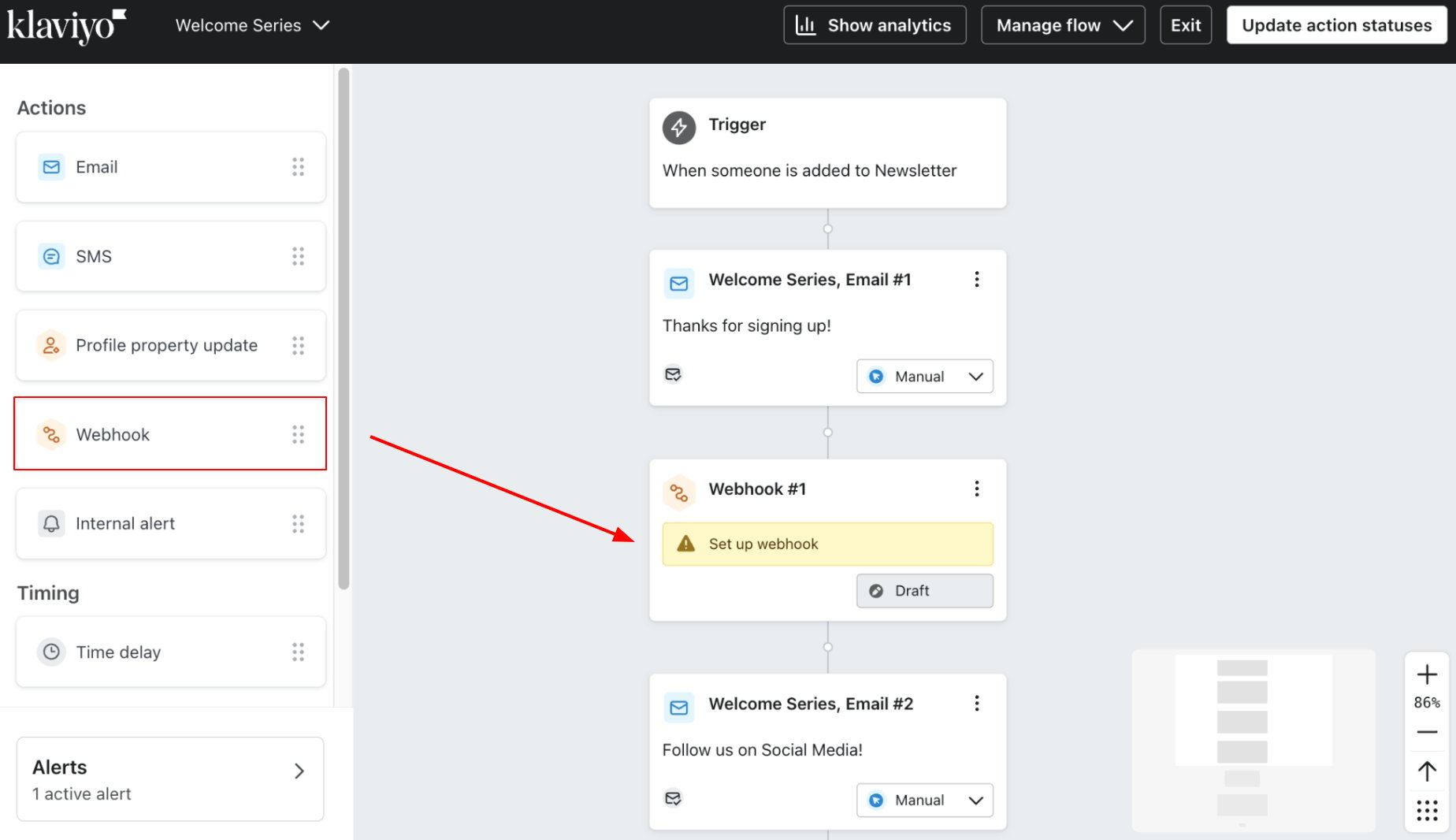
If this is your first time using the Webhook node, Klaviyo will prompt you to set up Multi-Factor Authentication before proceeding.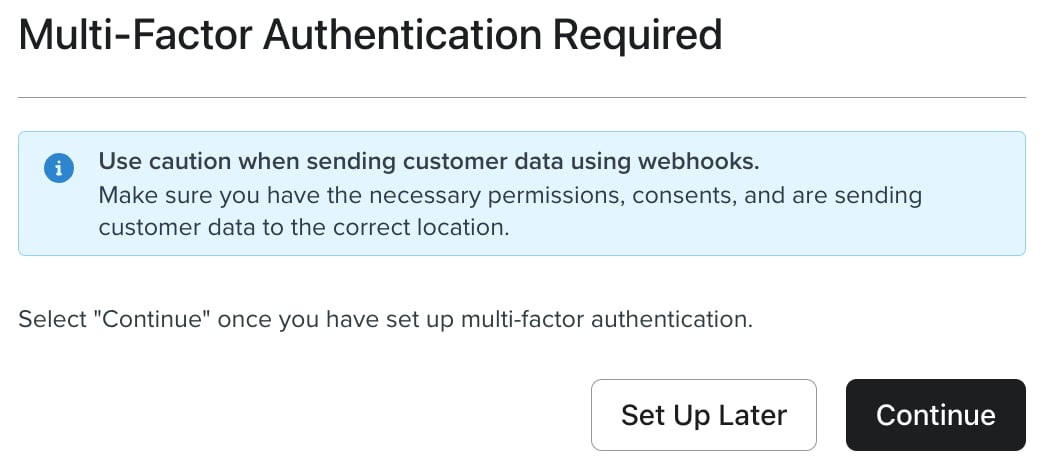
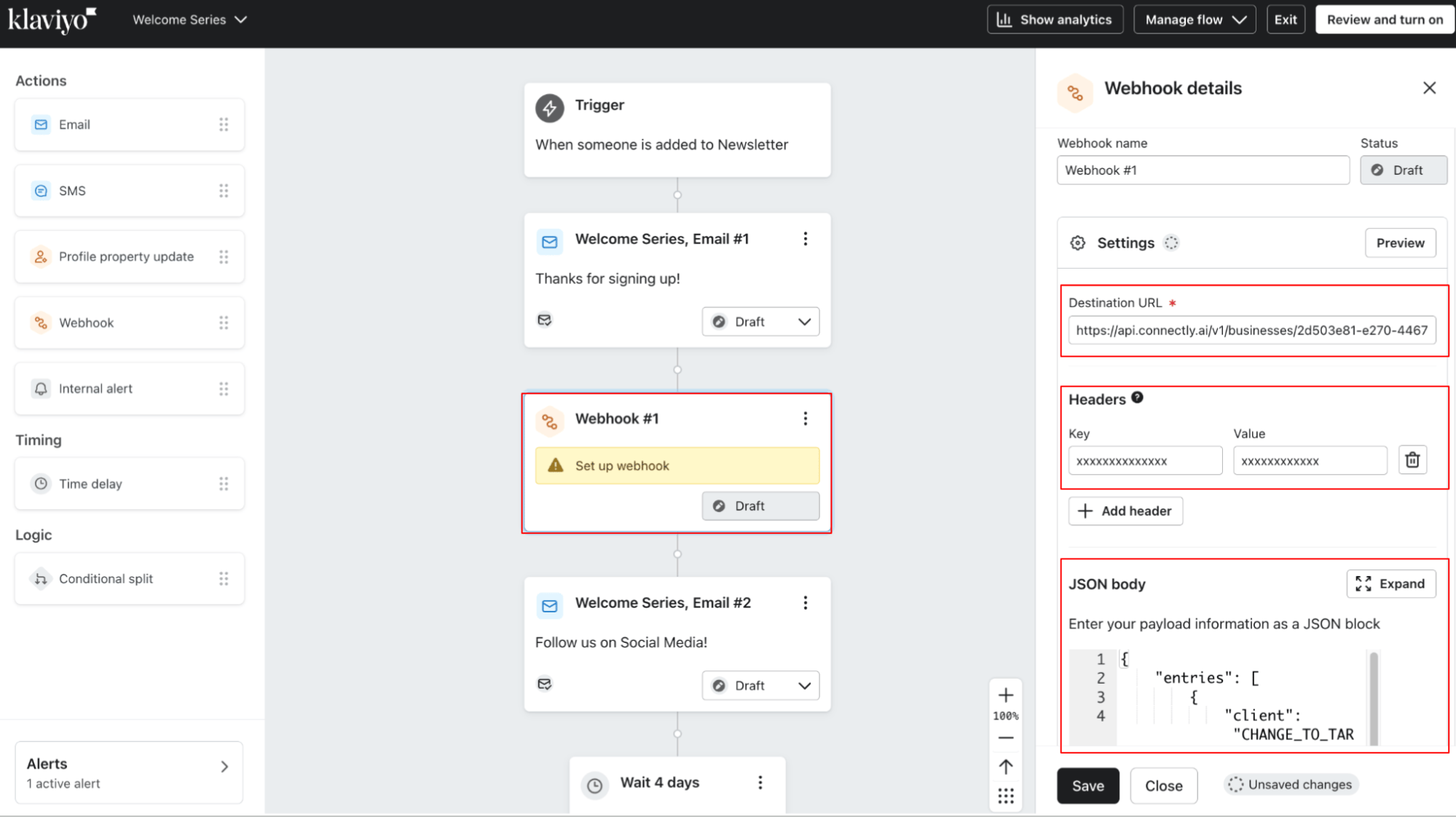
Step 5: Map campaign variables
Your JSON body contains placeholder values that need to be replaced with Klaviyo profile properties.1
Expand the JSON body to see all variables
In the webhook settings panel, click the Expand icon on the JSON body section to see the full payload. Each value marked 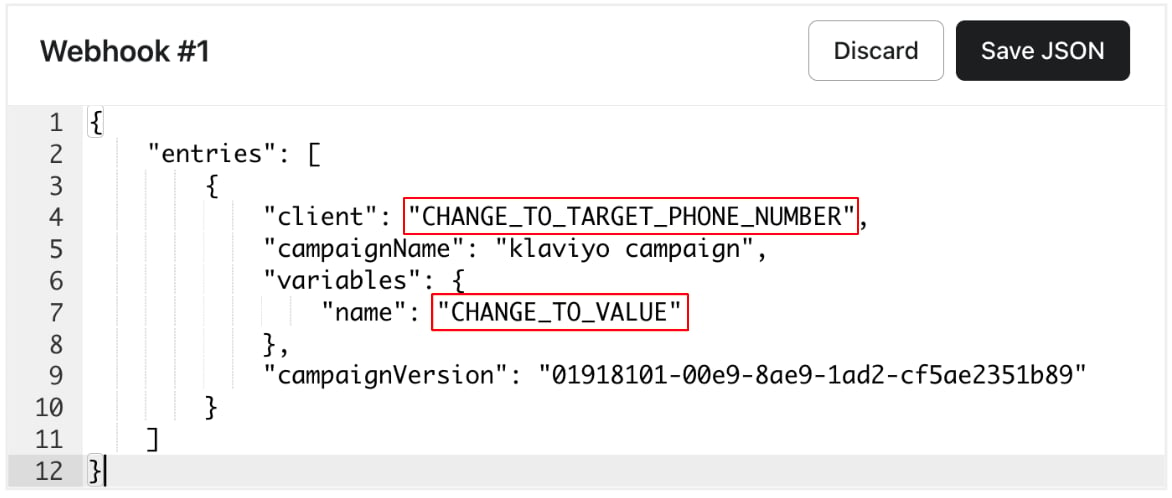
CHANGE_TO_* needs to be replaced.2
Open Preview to find Klaviyo variable names
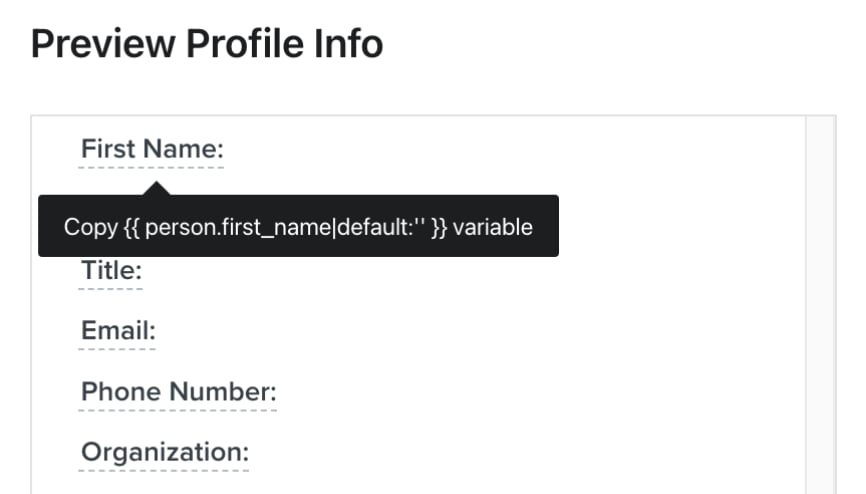
Click the Preview button in the Settings panel header. The Preview Profile Info panel appears, showing all available profile properties. Hover over any property to reveal its Klaviyo variable name, then click to copy it.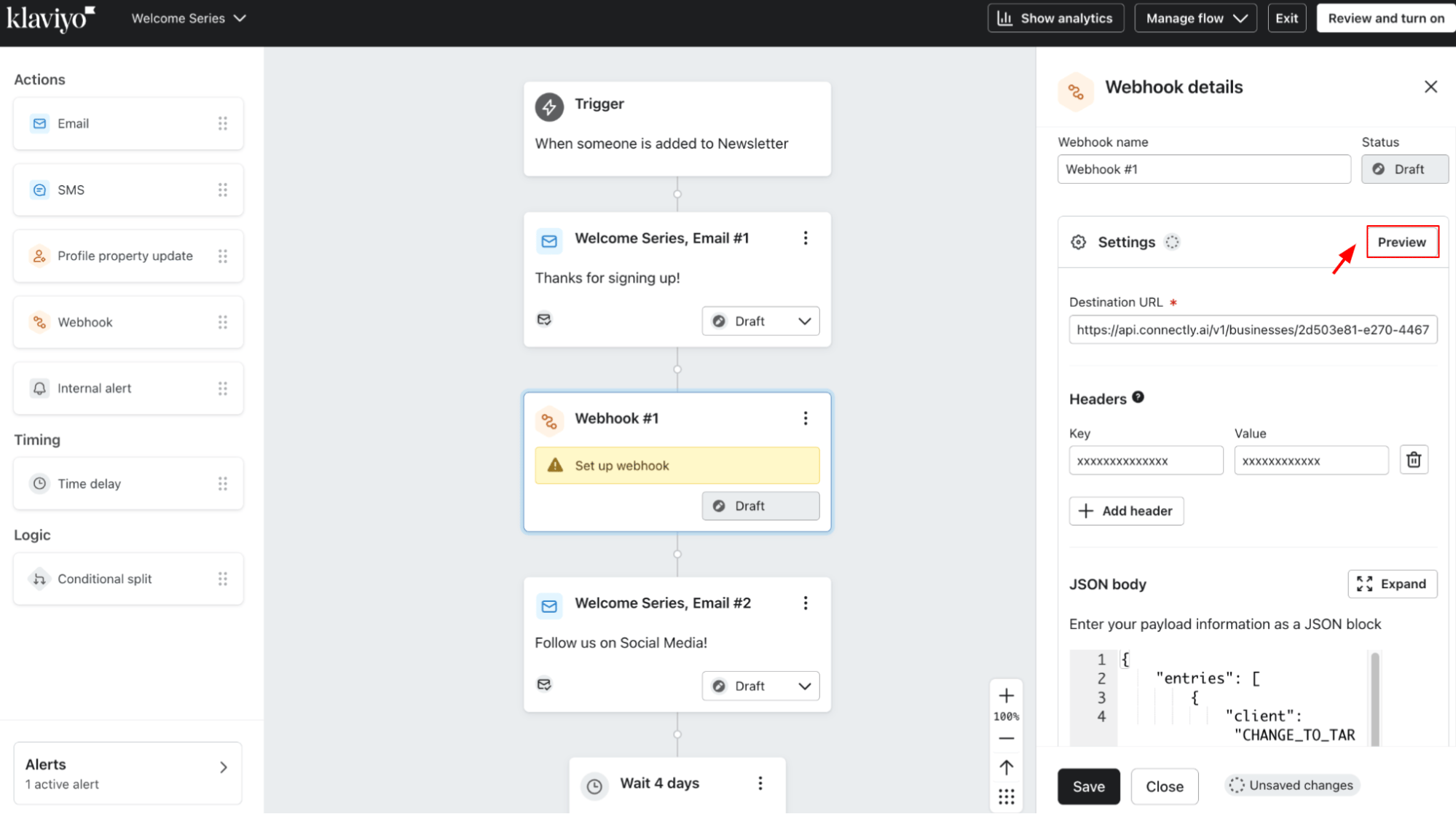
3
Replace each placeholder with its Klaviyo variable
Go back to the JSON body and replace each placeholder with the corresponding Klaviyo variable. For example, replace 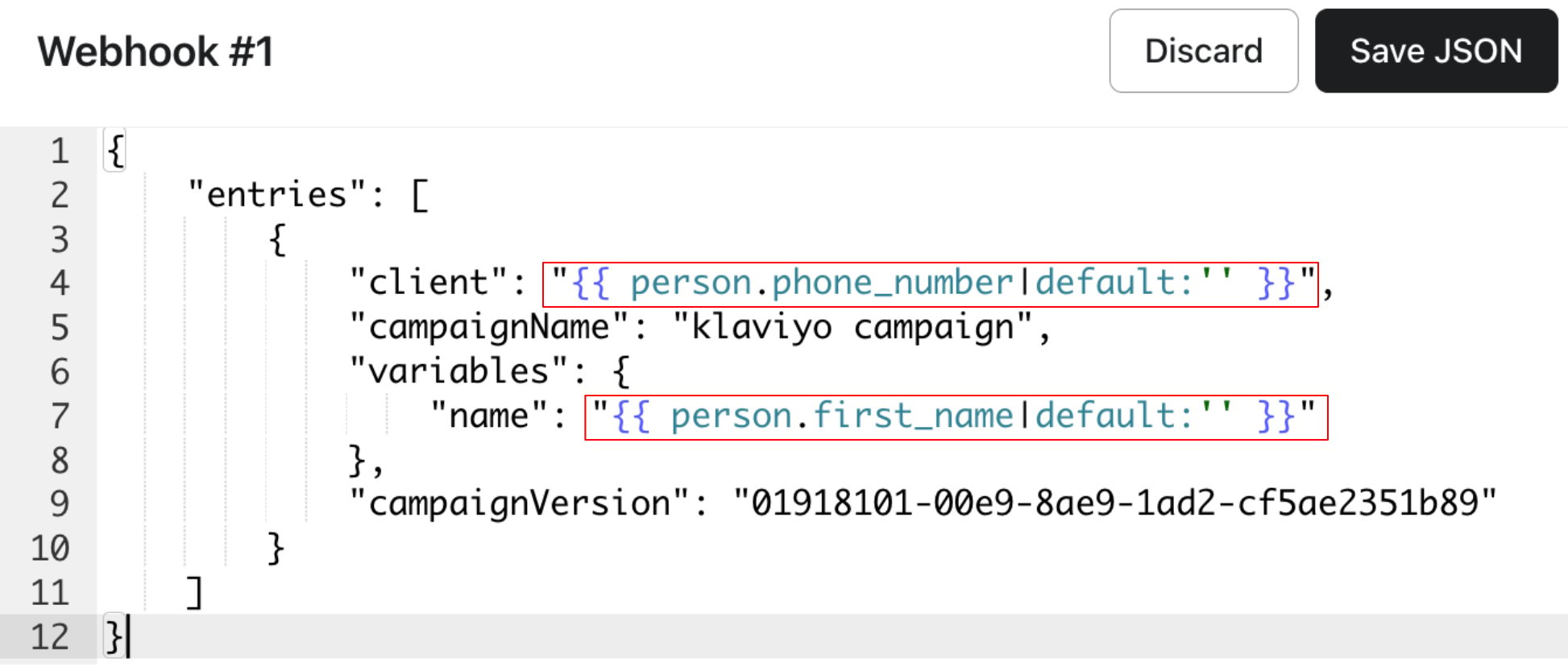
"CHANGE_TO_TARGET_PHONE_NUMBER" with "{{ person.phone_number|default:'' }}" and "CHANGE_TO_VALUE" with "{{ person.first_name|default:'' }}".Step 6: Test and activate the flow
1
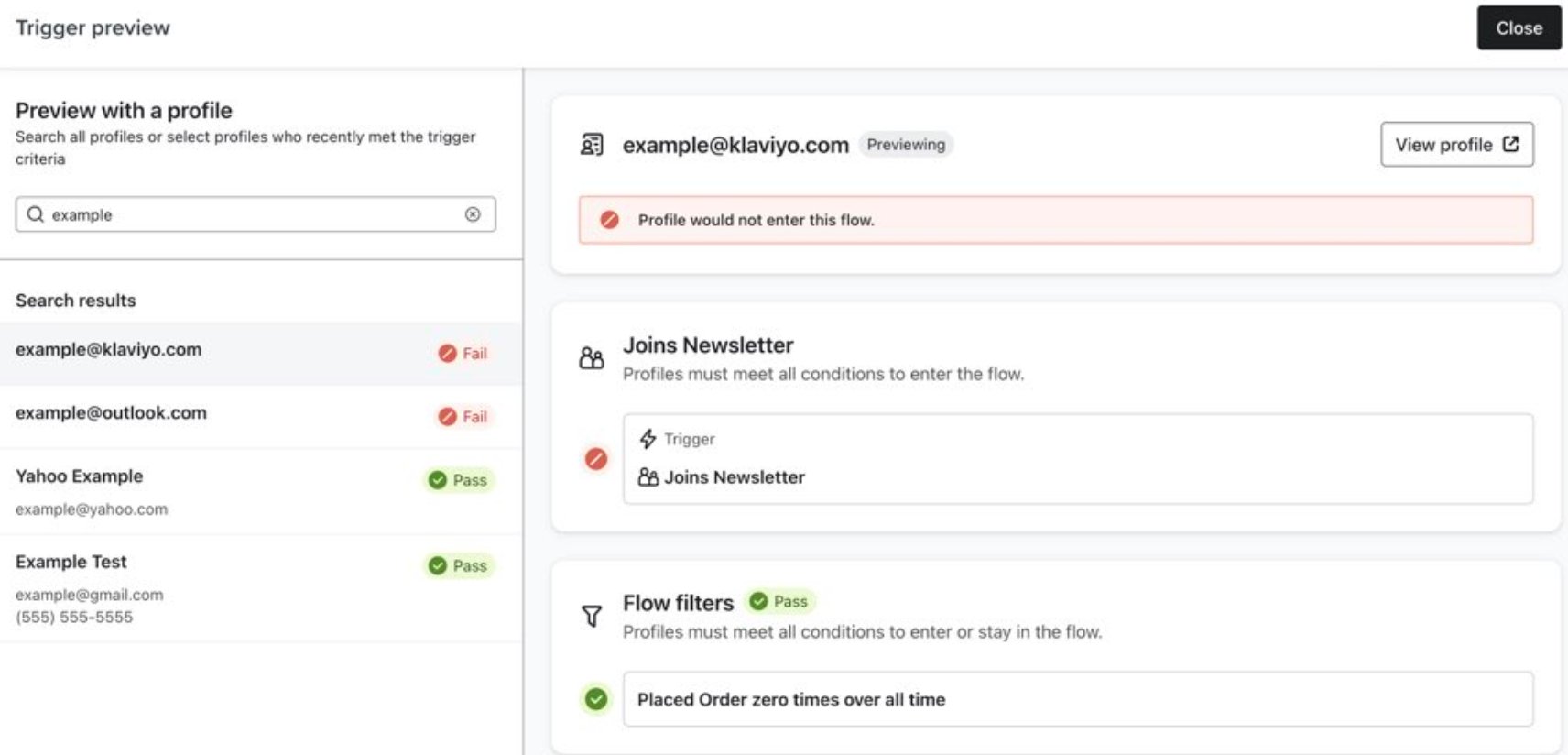
Use Trigger Preview to review flow logic
Click the Trigger node to open its settings panel, then click Preview. The Trigger Preview tool shows which profiles would enter the flow and whether they pass your filters. Use the search bar to look up a specific test user.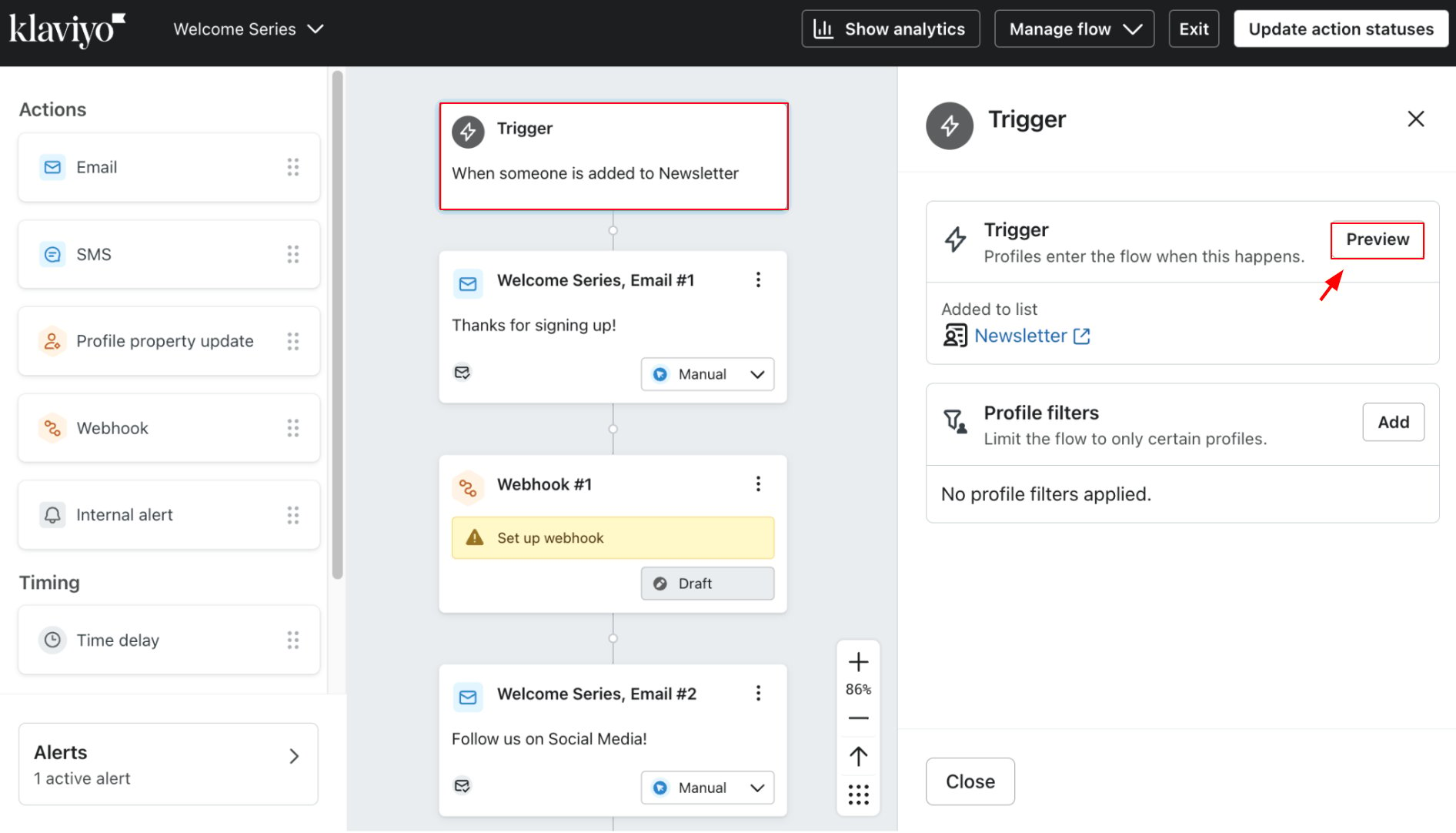
2
Set messages to Manual mode
Click on a flow message node to open its details. Change the status dropdown from Draft to Manual. In Manual mode, messages are scheduled as if live but held for your review instead of being sent automatically.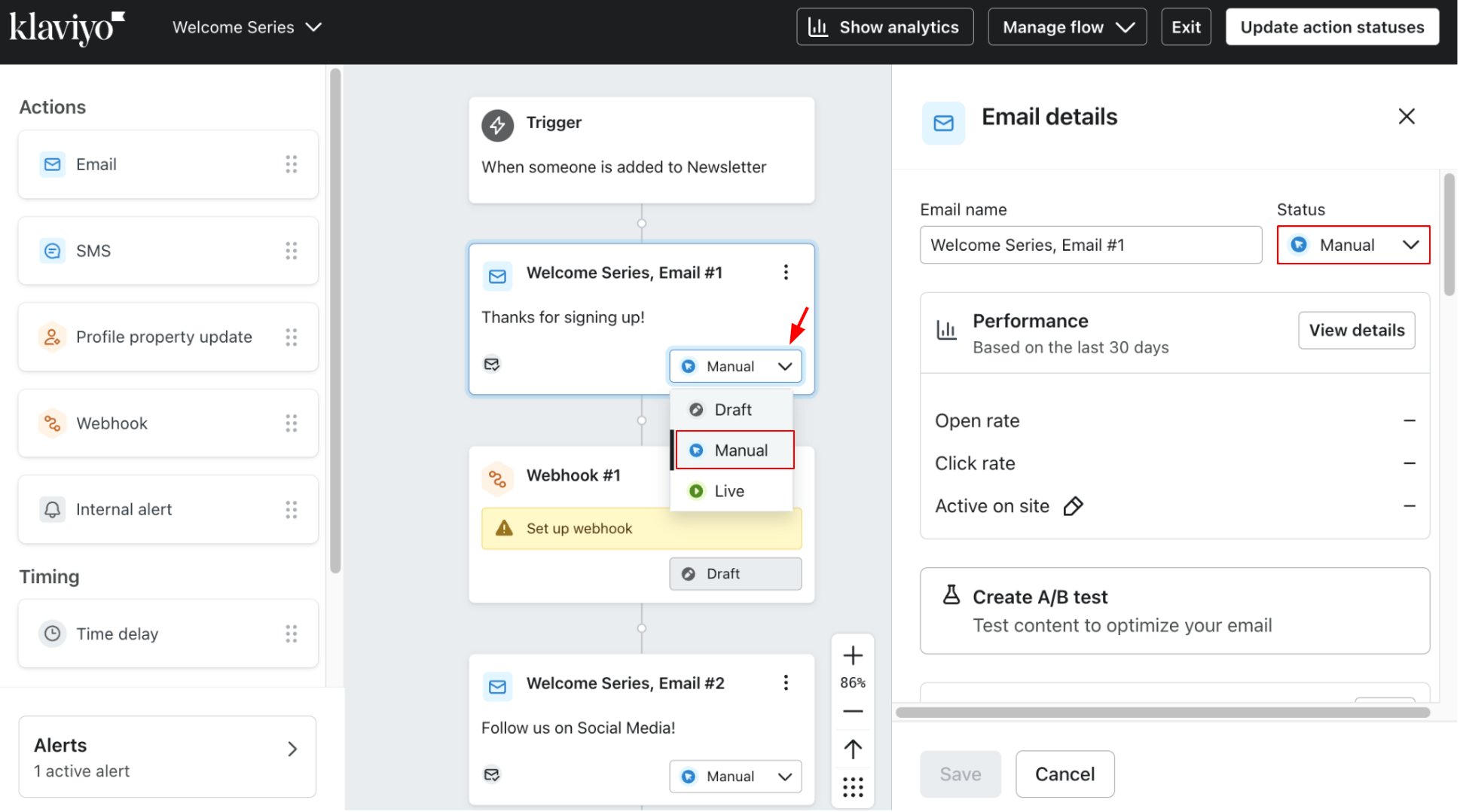
3
Review and approve test messages
Select the flow message and click View details in the Performance section of the right sidebar.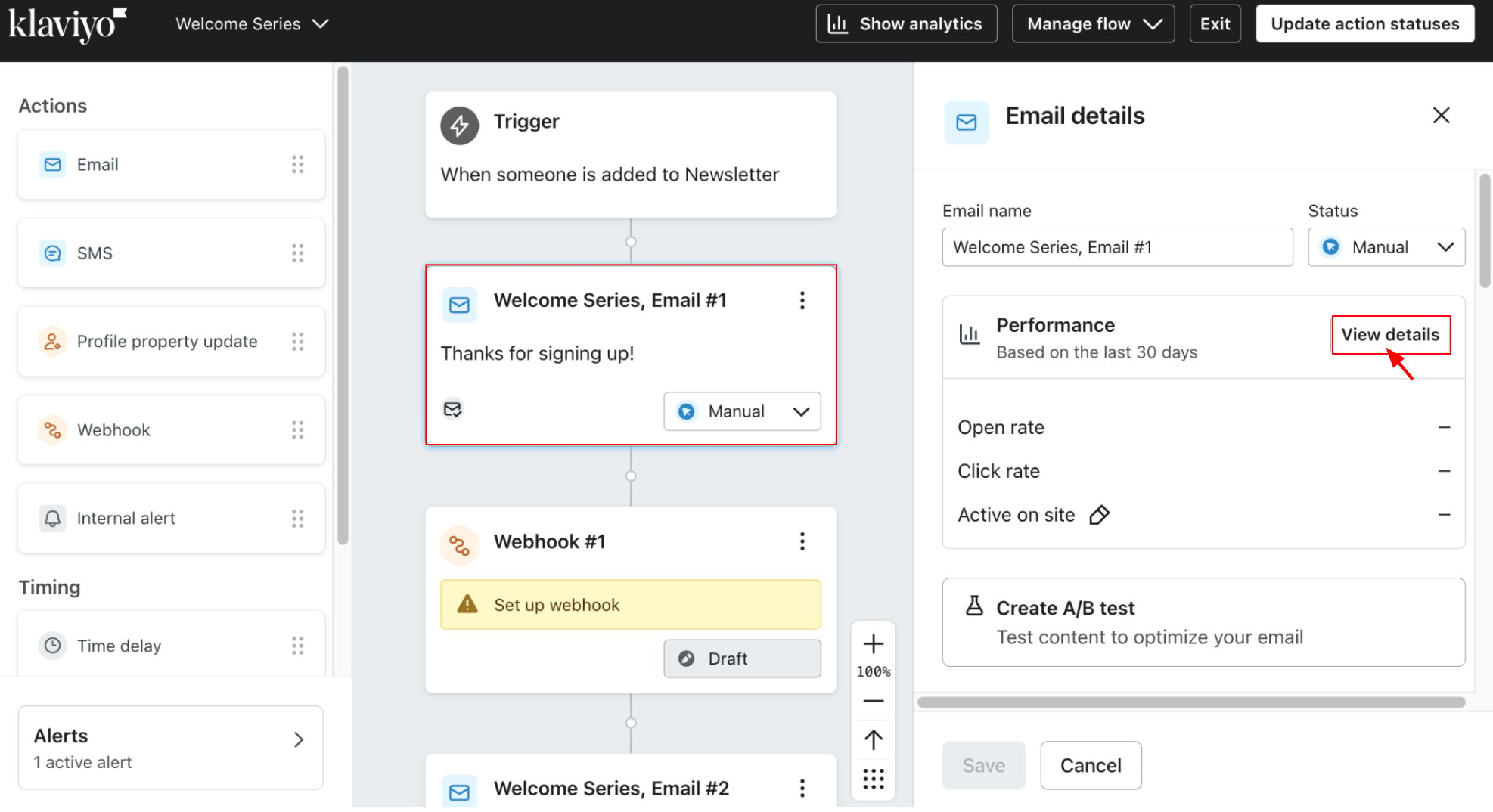
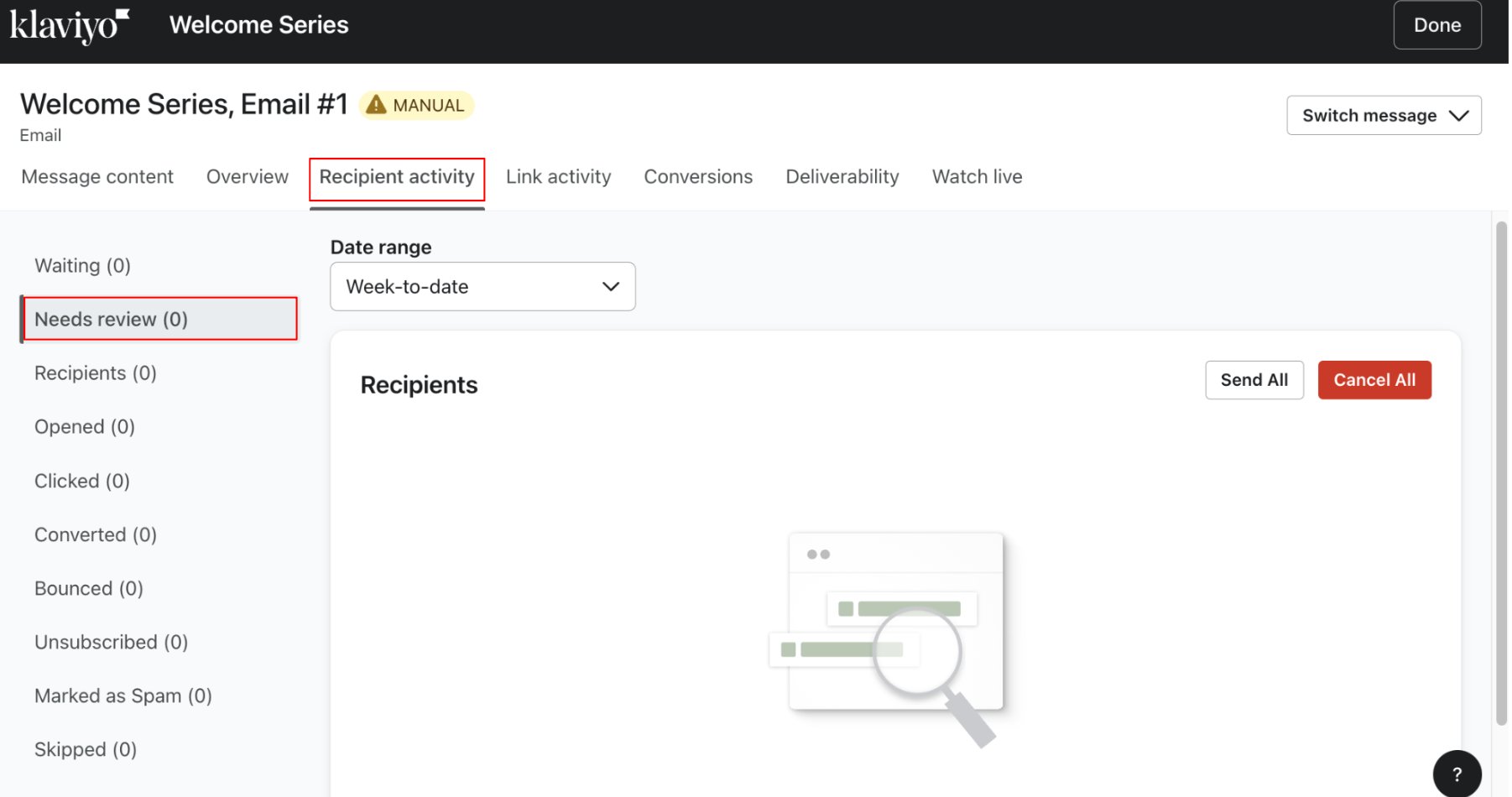
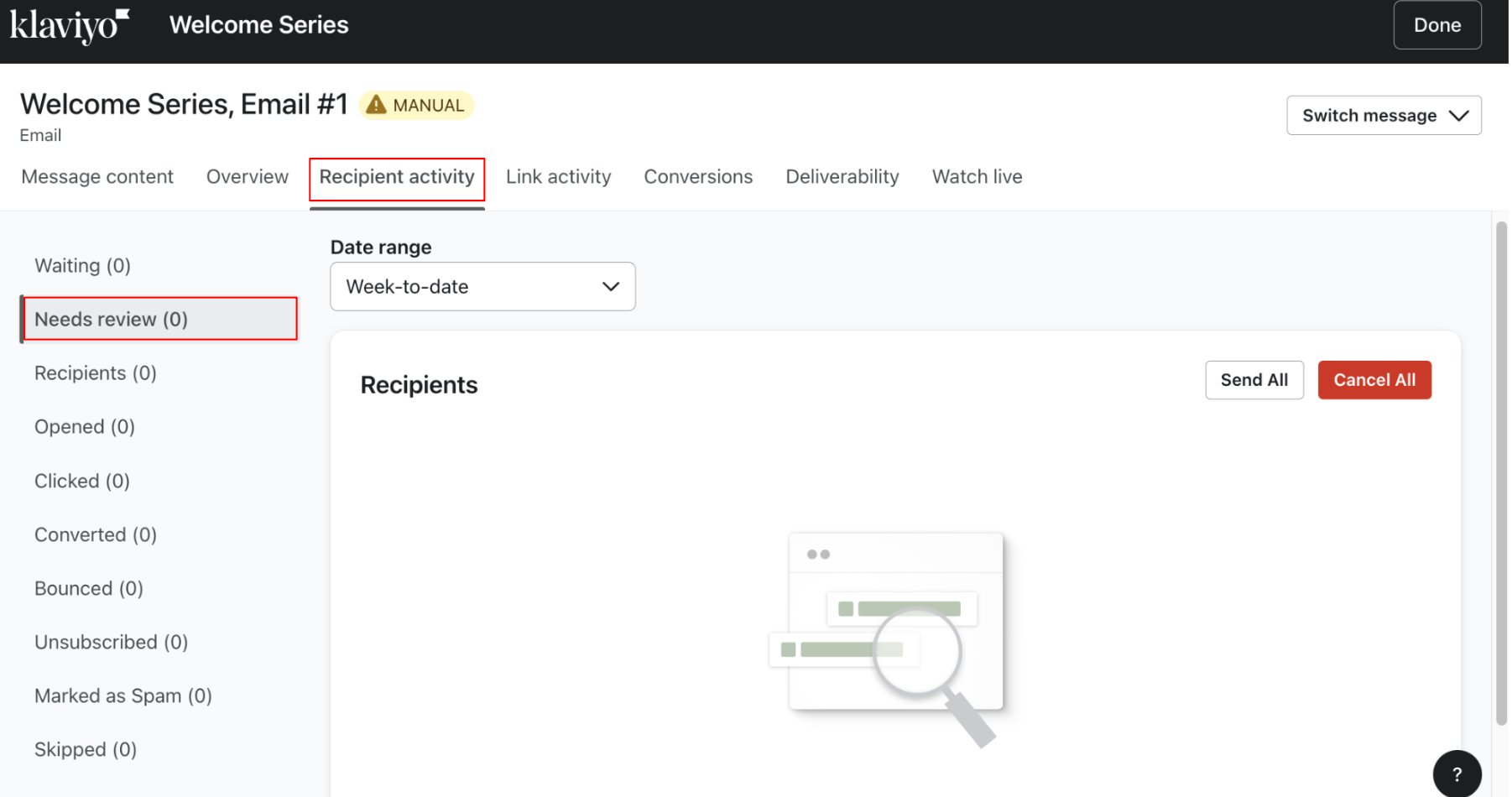
When a message status is updated from Manual to Live, recipients in Waiting will receive the message automatically at send time. Recipients in Needs Review will still require manual approval.
4
Activate the flow
Once you’ve finished building and testing, click Save and then Review and turn on in the top right corner.
Check the tutorial video here: How to adjust variables at Klaviyo
Analytics
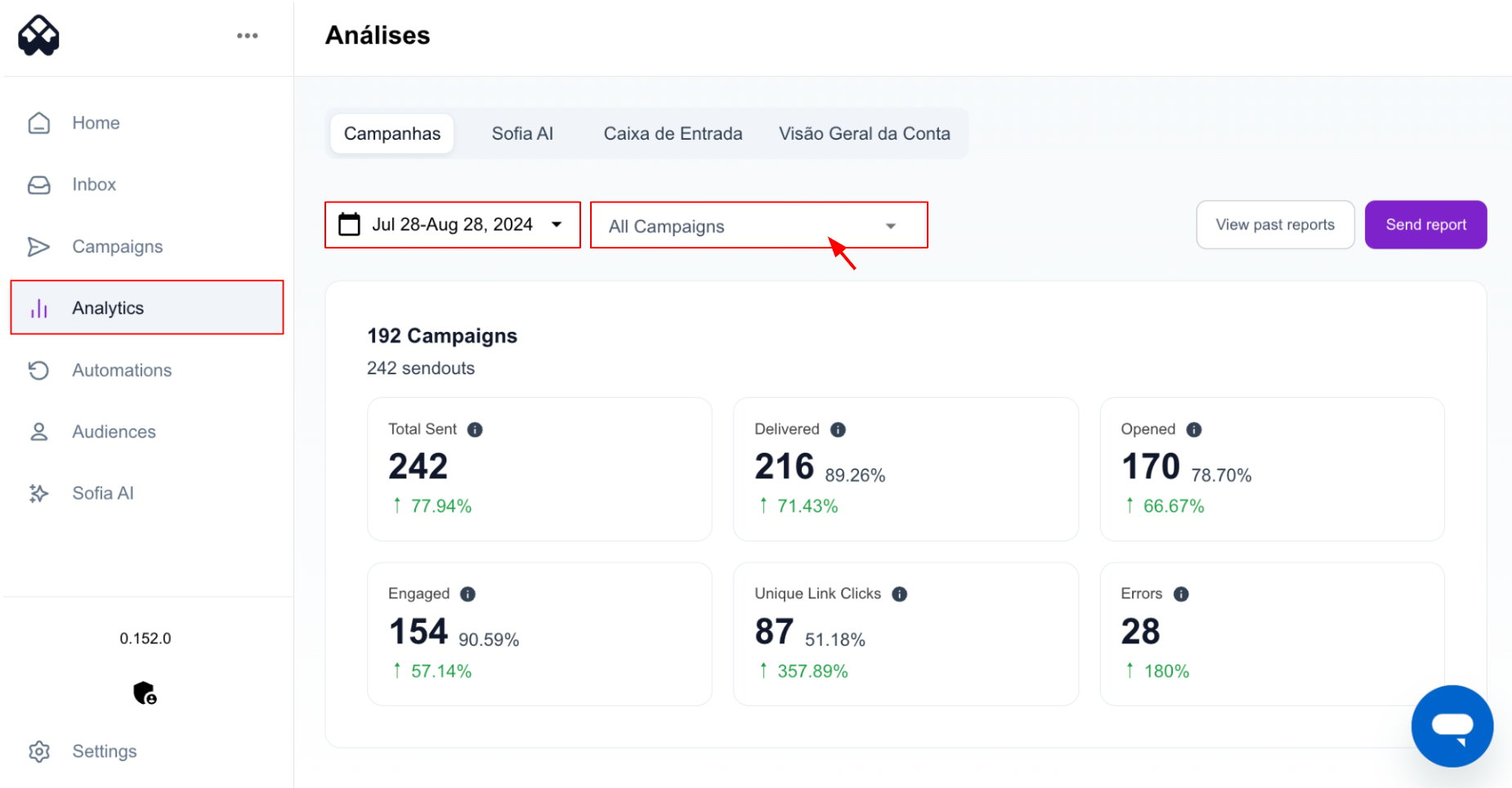
Campaign results and key metrics are available in the Connectly platform under Analytics. Select your campaign and timeframe to view delivery, engagement, and performance data.