> ## Documentation Index
> Fetch the complete documentation index at: https://docs.connectly.ai/llms.txt
> Use this file to discover all available pages before exploring further.
# Teams
> Create teams, organize them in folders, and manage their members ⚙️
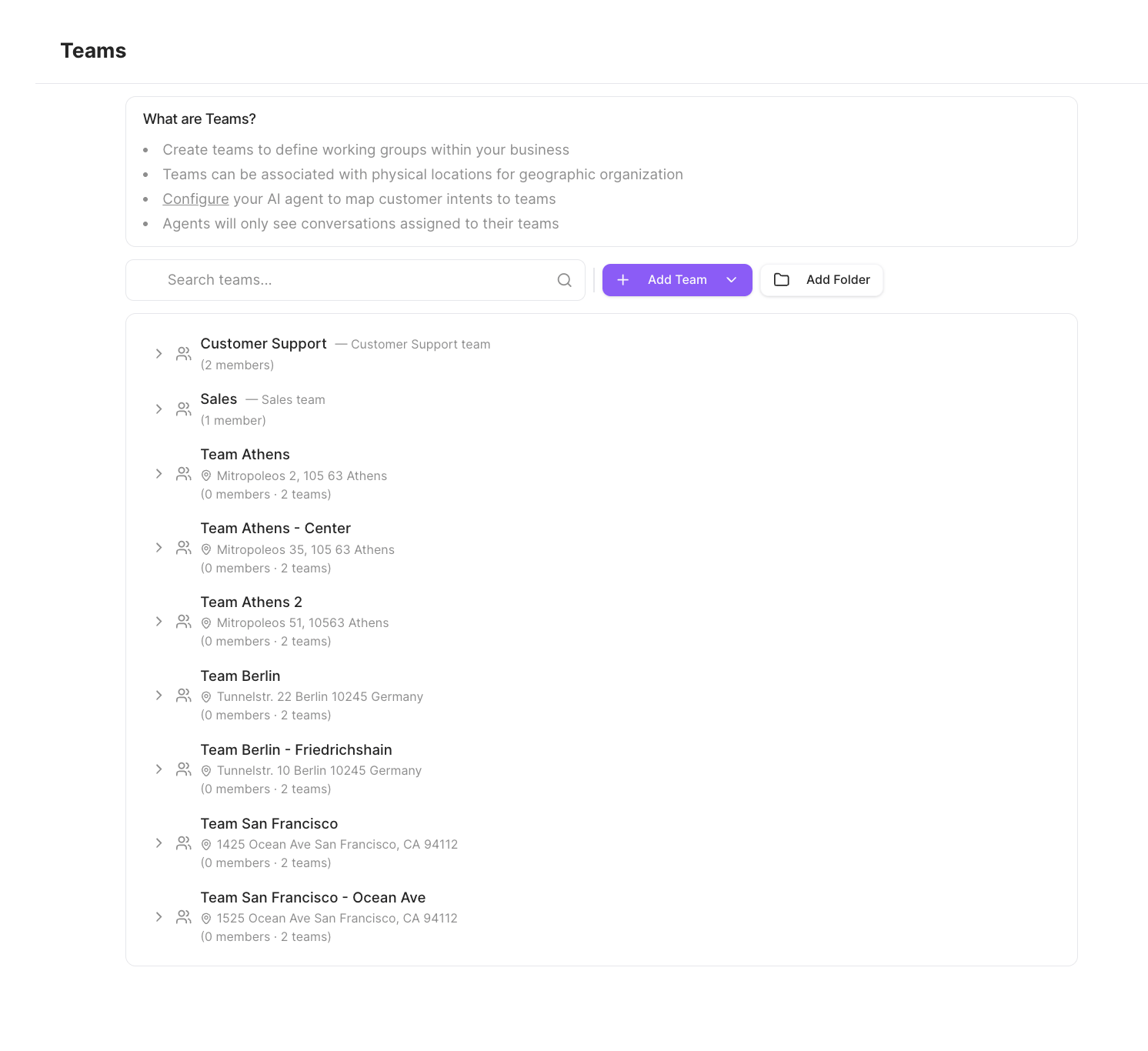
A team is a working group of agents within your business. Teams do two things: they
**organize who sees what** (agents only see conversations assigned to their teams), and
they **receive routed conversations** (routing directs a conversation to a team, and an
agent within it picks it up). Manage them in **Settings → Teams**.
 ## Team visibility
Each team has a visibility model:
| Visibility | What it means |
| ---------------- | -------------------------------------------------------------------------------------------------- |
| **Hierarchical** | Agents can see conversations from their team *and* its child teams. |
| **Isolated** | Agents can see *only* their own team's conversations — useful for franchises or individual stores. |
## Create a team
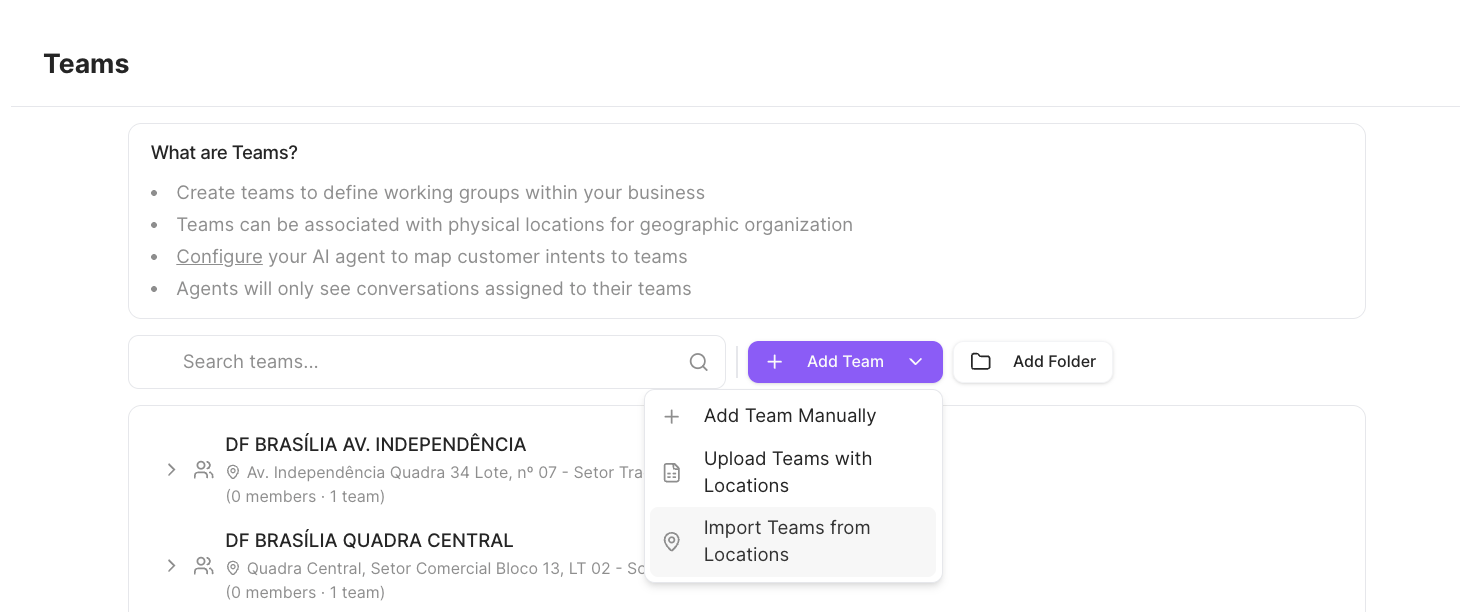
Click **Add Team** to see the ways to create teams. **Add Team Manually** opens the
create dialog; the other options create location-based teams in bulk (see
[Stores](/teams-and-stores/stores)).
## Team visibility
Each team has a visibility model:
| Visibility | What it means |
| ---------------- | -------------------------------------------------------------------------------------------------- |
| **Hierarchical** | Agents can see conversations from their team *and* its child teams. |
| **Isolated** | Agents can see *only* their own team's conversations — useful for franchises or individual stores. |
## Create a team
Click **Add Team** to see the ways to create teams. **Add Team Manually** opens the
create dialog; the other options create location-based teams in bulk (see
[Stores](/teams-and-stores/stores)).
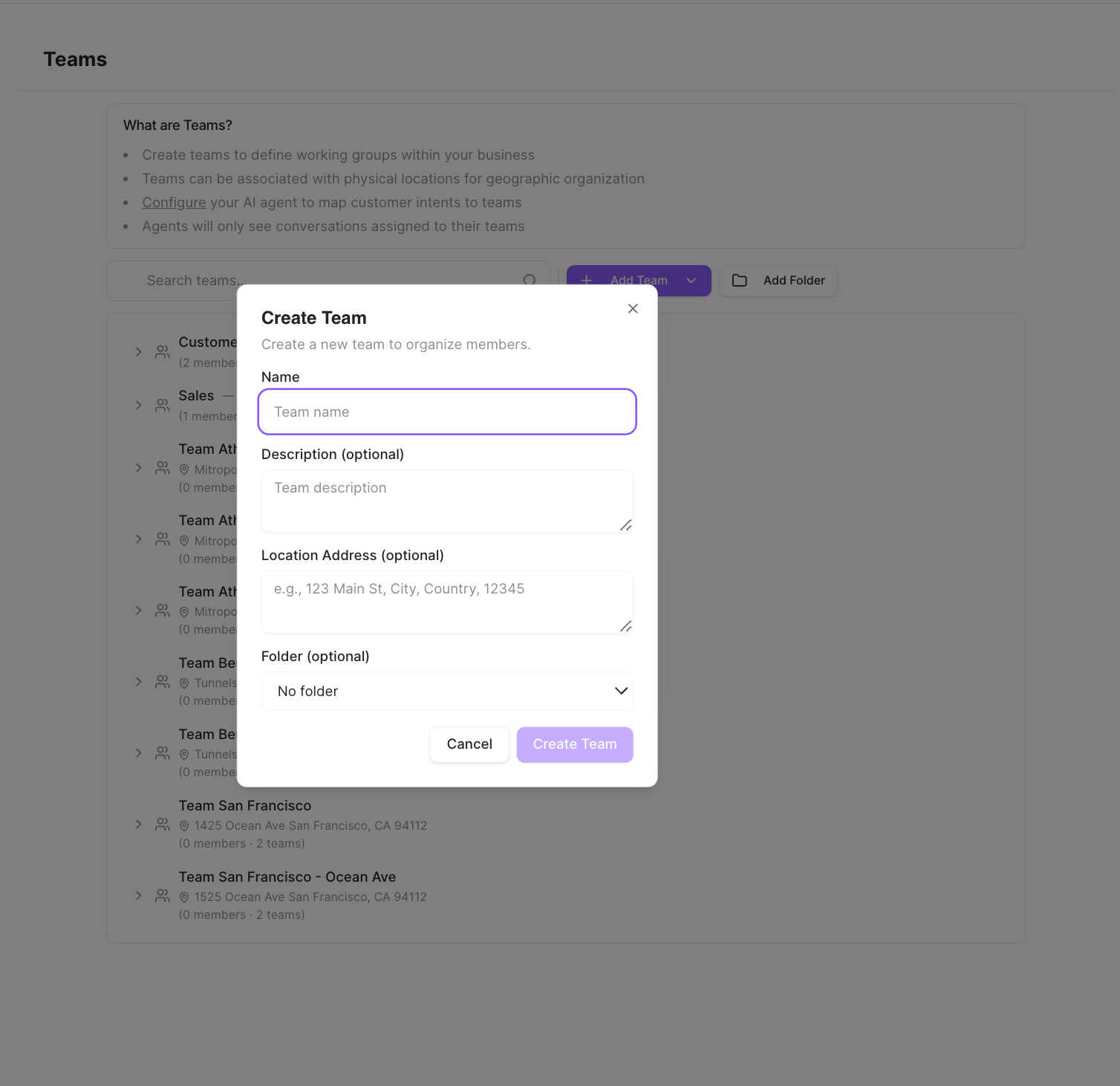
 In the **Create Team** dialog you can set:
* **Name** (required) — the team's name.
* **Description** (optional).
* **Location Address** (optional) — links the team to a physical store location, turning
it into a [store](/teams-and-stores/stores).
* **Folder** (optional) — place the team inside a folder for organization.
In the **Create Team** dialog you can set:
* **Name** (required) — the team's name.
* **Description** (optional).
* **Location Address** (optional) — links the team to a physical store location, turning
it into a [store](/teams-and-stores/stores).
* **Folder** (optional) — place the team inside a folder for organization.
 A team can live in a **folder** or be tied to a **location**, but not both at once.
## Folders
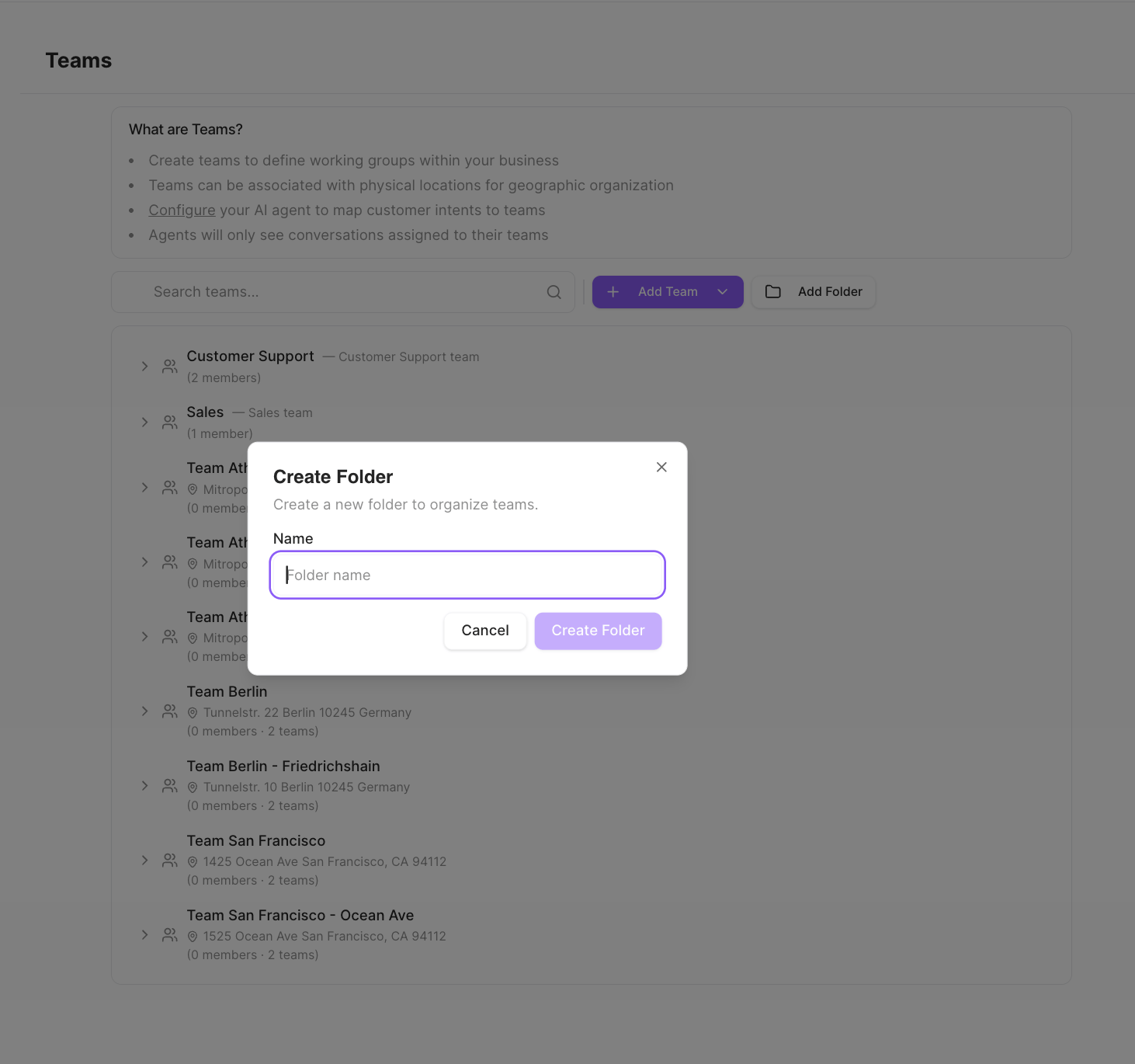
Folders **visually group** teams on the Teams page. A folder only has a name — it has no
members and doesn't receive conversations itself. Use **Add Folder** to create one.
A team can live in a **folder** or be tied to a **location**, but not both at once.
## Folders
Folders **visually group** teams on the Teams page. A folder only has a name — it has no
members and doesn't receive conversations itself. Use **Add Folder** to create one.
 ## Members
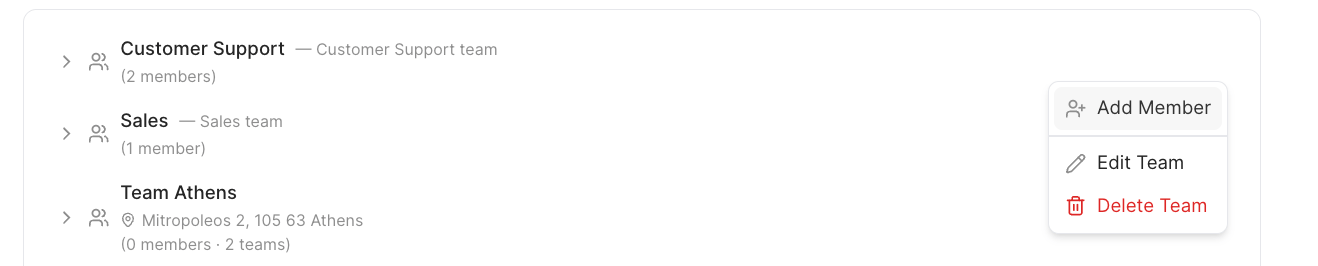
Open a team's menu to **Add Member**, **Edit Team**, or **Delete Team**.
## Members
Open a team's menu to **Add Member**, **Edit Team**, or **Delete Team**.
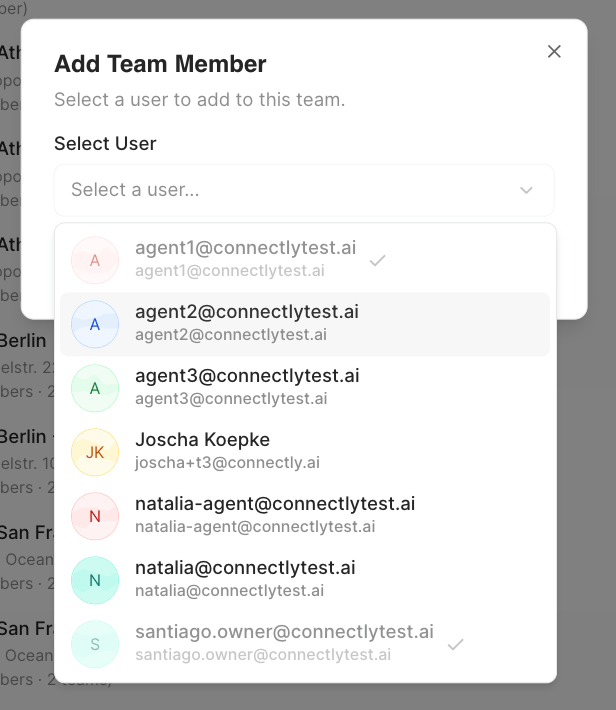
 **Add Member** lets you pick a user from your business to add to the team. Remove a
member from the team's menu.
**Add Member** lets you pick a user from your business to add to the team. Remove a
member from the team's menu.
 There are no team-level roles. Permissions come from a person's business role —
workspace **owners** act as admins and can manage every team, while other agents
simply belong to the teams they're added to.
## Edit or delete a team
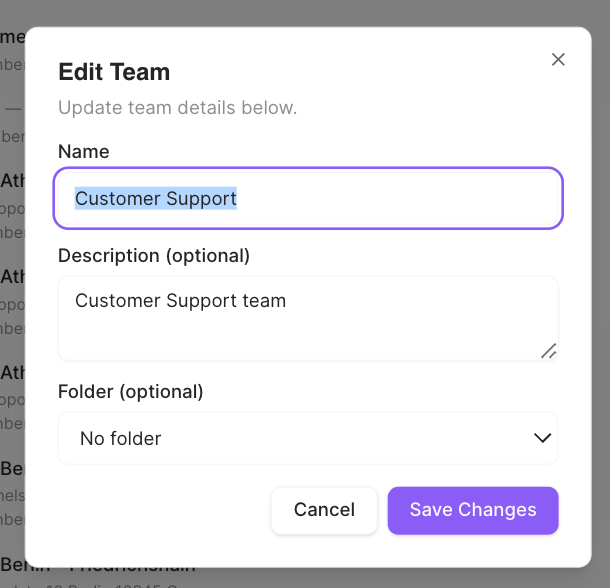
Use **Edit Team** to update its name, description, or folder, then **Save Changes**.
**Delete Team** removes it.
There are no team-level roles. Permissions come from a person's business role —
workspace **owners** act as admins and can manage every team, while other agents
simply belong to the teams they're added to.
## Edit or delete a team
Use **Edit Team** to update its name, description, or folder, then **Save Changes**.
**Delete Team** removes it.