> ## Documentation Index
> Fetch the complete documentation index at: https://docs.connectly.ai/llms.txt
> Use this file to discover all available pages before exploring further.
# Stores
> Turn your store locations into teams so you can route customers to the right branch ⚙️
In Connectly, a **store** is a [team](/teams-and-stores/teams) that's tied to a physical
location. Setting up stores lets you route each customer to the team that runs their
nearest branch — ideal for retailers, franchises, and multi-branch businesses.
You can turn a single team into a store by giving it a **Location Address** when you
[create it](/teams-and-stores/teams#create-a-team). If you have many locations, create
them in bulk with either of the two options below (both under **Add Team**).
## Import Teams from Locations
If your store locations already exist in Connectly, **Import Teams from Locations** turns
them into teams. Pick the locations you want, optionally create **Sales** and **Customer
Support** subteams for each, and import.
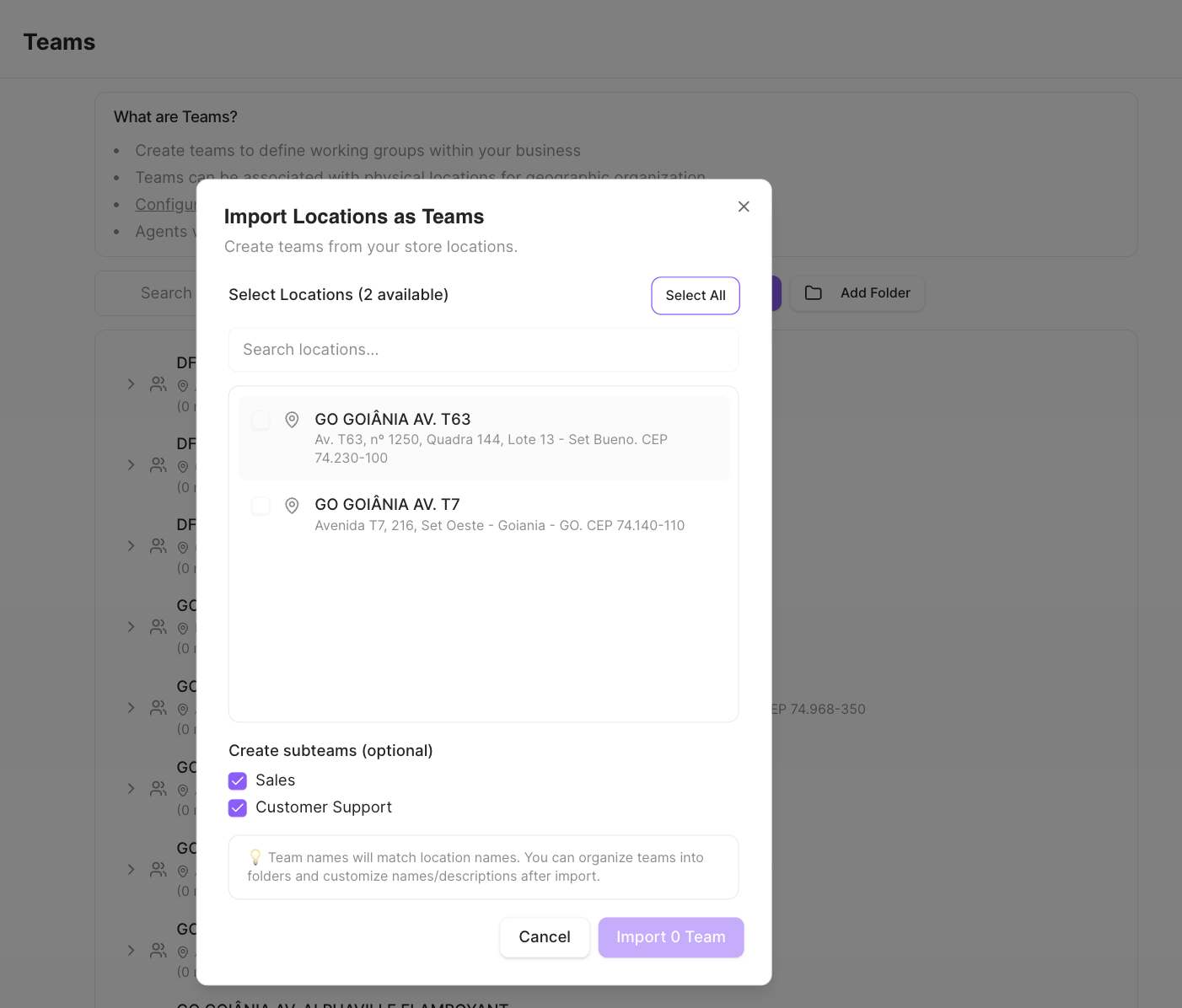 Team names match the location names. You can reorganize teams into folders and rename
them after importing.
## Upload Teams with Locations
To create location-based teams from scratch, **Upload Teams with Locations** uses a
Google Sheet. It's a two-step flow: fill in the spreadsheet with your team names and
addresses, then upload and process it.
Team names match the location names. You can reorganize teams into folders and rename
them after importing.
## Upload Teams with Locations
To create location-based teams from scratch, **Upload Teams with Locations** uses a
Google Sheet. It's a two-step flow: fill in the spreadsheet with your team names and
addresses, then upload and process it.
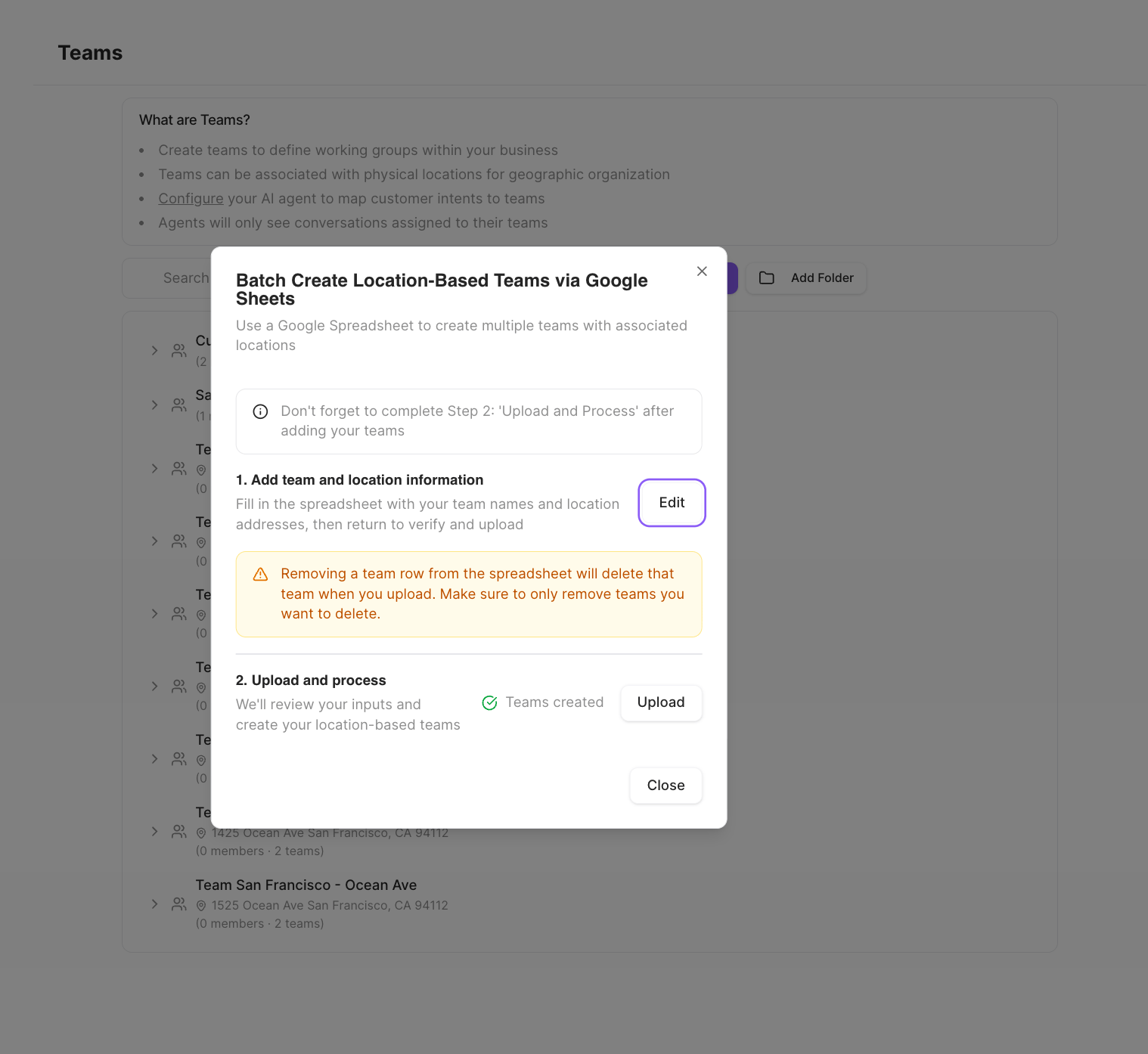 The spreadsheet has a column for the team name, an optional description, and the address:
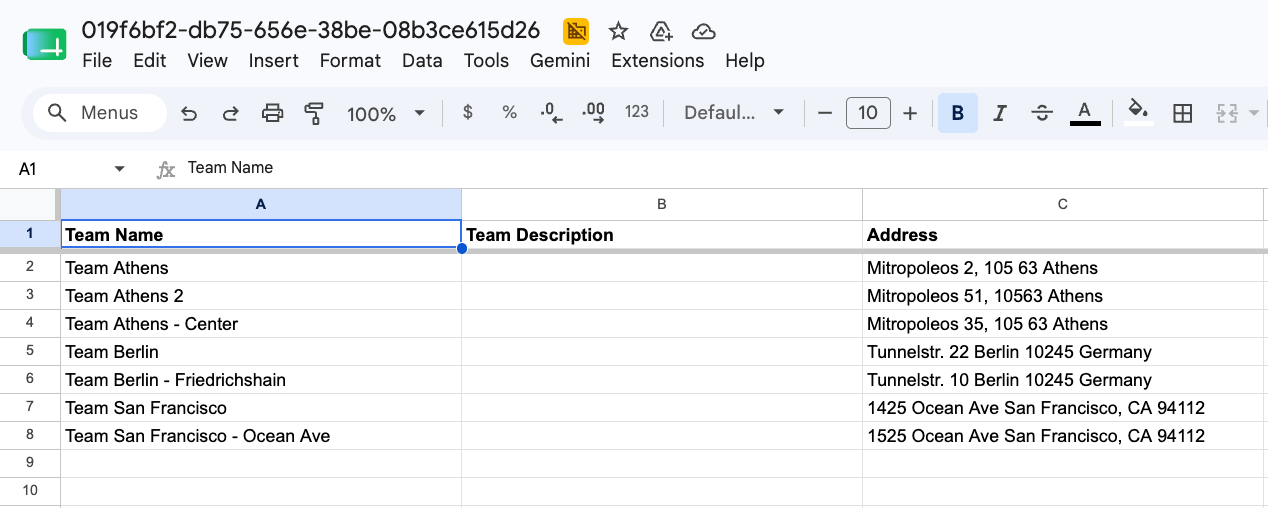 Removing a team's row from the spreadsheet will **delete** that team on the next
upload. Only remove rows for teams you actually want to delete.
## Routing customers to a store
Once your stores exist, routing customers to their nearest store is configured in your
**AI agent's handover** (with **Team Routing** turned on in
[Ticket Routing](/inbox/ticket-routing)). There, you can have the agent ask the customer
to choose a store and route the conversation to that location's team. That setup is part
of the agent configuration and is covered separately.
Removing a team's row from the spreadsheet will **delete** that team on the next
upload. Only remove rows for teams you actually want to delete.
## Routing customers to a store
Once your stores exist, routing customers to their nearest store is configured in your
**AI agent's handover** (with **Team Routing** turned on in
[Ticket Routing](/inbox/ticket-routing)). There, you can have the agent ask the customer
to choose a store and route the conversation to that location's team. That setup is part
of the agent configuration and is covered separately.