> ## Documentation Index
> Fetch the complete documentation index at: https://docs.connectly.ai/llms.txt
> Use this file to discover all available pages before exploring further.
# Working a conversation
> Reply to customers with text, templates, quick replies, files, audio, emoji, and reactions — right from the conversation 💬
Once you open a conversation, the composer at the bottom is where you reply to the
customer. It supports much more than plain text.
## Ways to reply
| Option | What it's for |
| ----------------- | ----------------------------------------------------------------------------------------------------------- |
| **Text** | Type a reply in the composer (it's pre-labeled *Reply to {customer}*). |
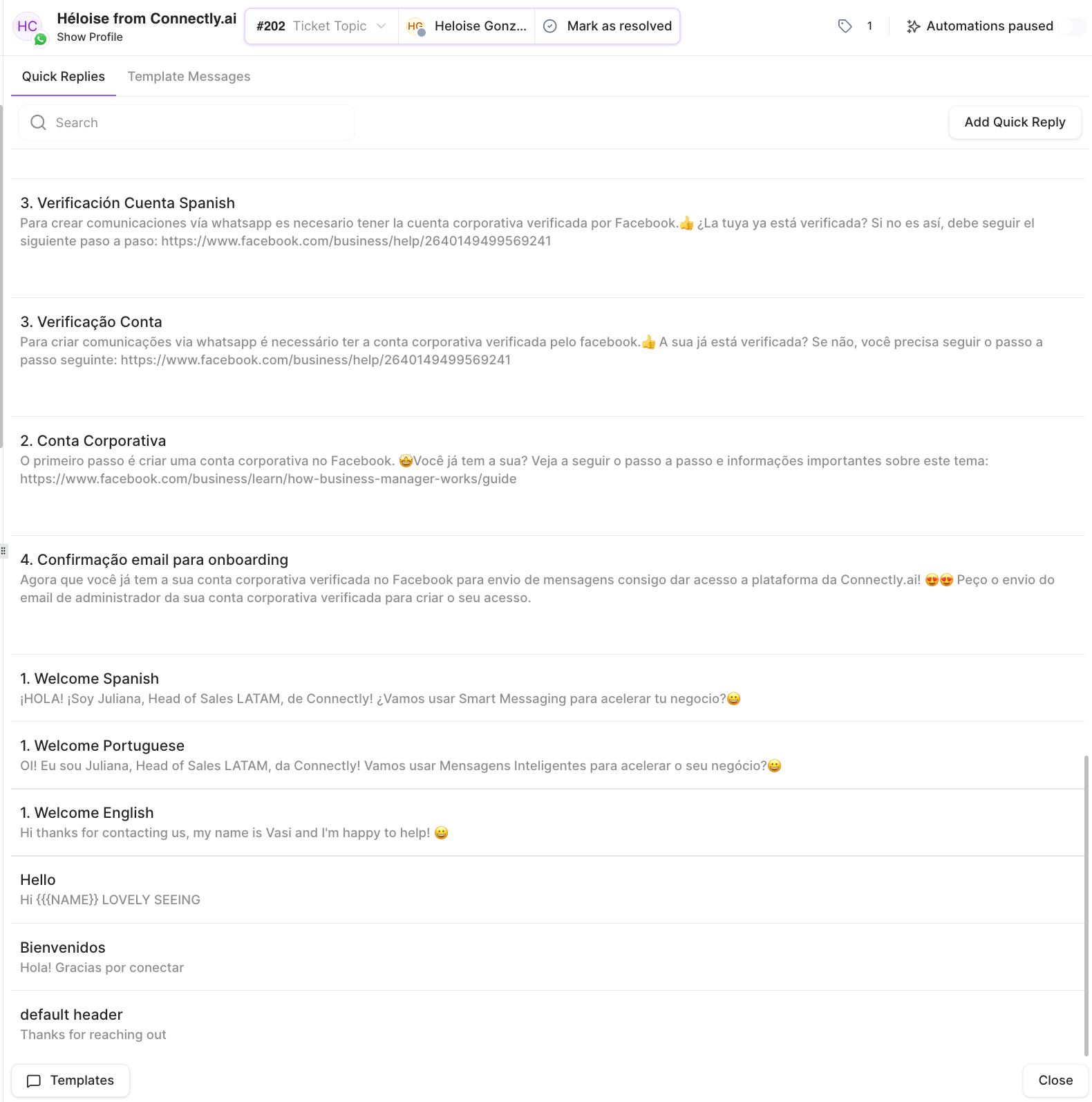
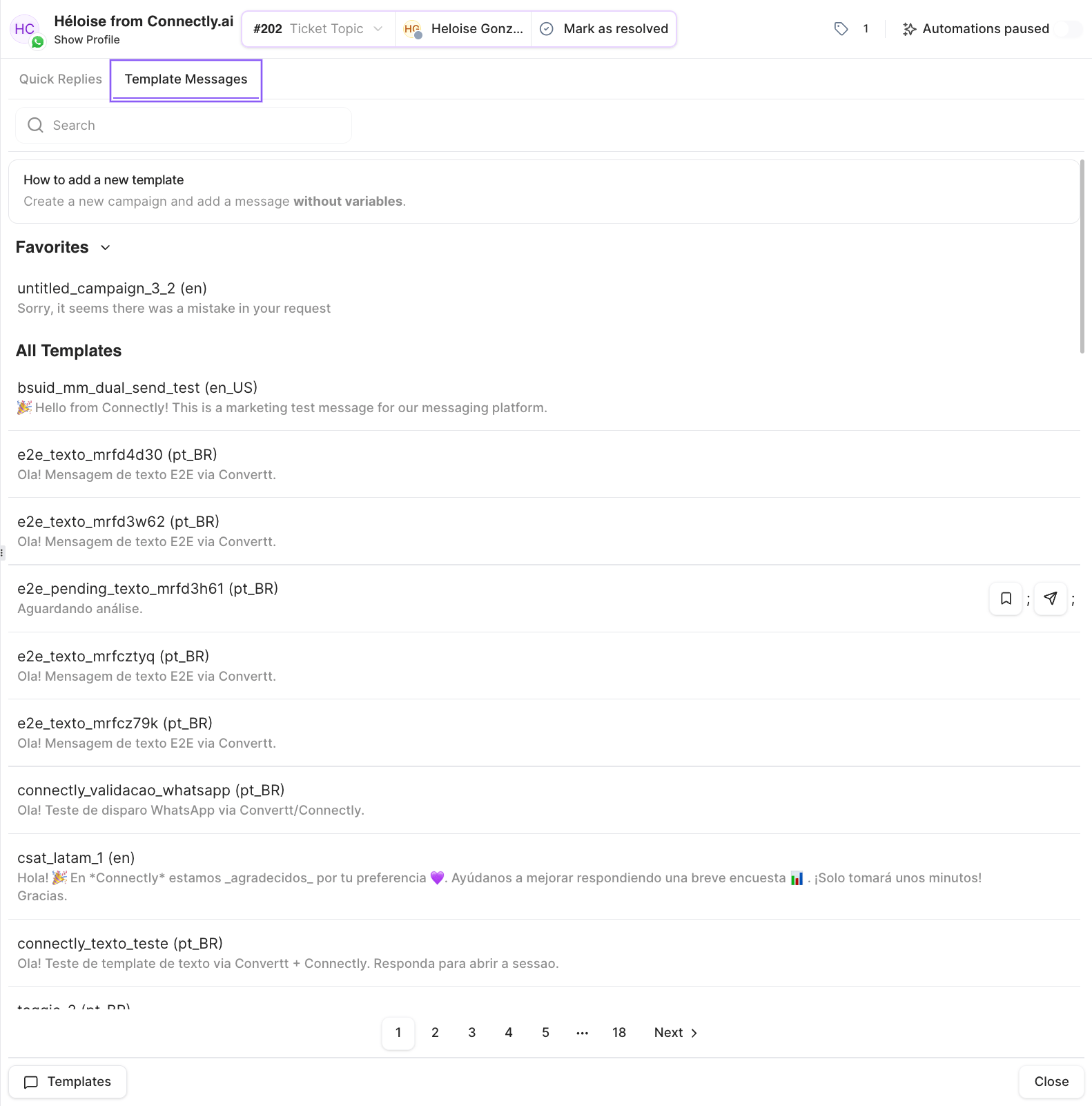
| **Templates** | Send an approved WhatsApp message template — available on WhatsApp and Blip channels. |
| **Quick replies** | Insert one of your team's saved snippets. You can add, edit, and delete quick replies inline. |
| **Files** | Attach an image, document, or other file (one attachment per message). You can also drag-and-drop or paste. |
| **Audio** | Record and send a voice note. |
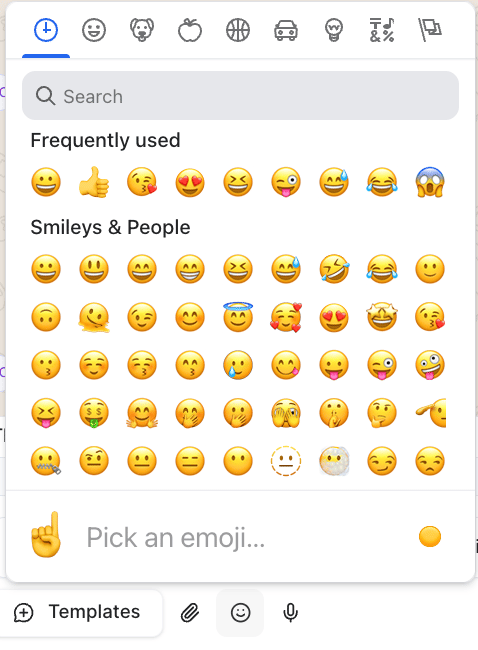
| **Emoji** | Insert emoji into your reply (available on desktop). |
The **Templates** button opens your message library, with **Quick Replies** and
**Template Messages** tabs:
 Add emoji from the emoji picker:
 ## React and reply to a specific message
* **Reactions** — add an emoji reaction to a specific message in the thread.
* **Reply / quote** — reply to a specific earlier message so the customer sees the
context you're responding to.
## Send behavior
Choose whether pressing **Enter** sends your message or adds a new line. This is a
personal preference — see [Send Behavior](/inbox/settings) in Inbox Settings.
## The send button adapts to the ticket
The send button's label tells you what will happen when you send, based on the ticket's
state:
| Label | What happens |
| -------------------------- | ------------------------------------------------------------- |
| **Send** | Sends your reply in the normal case. |
| **Open ticket and send** | There's no open ticket yet — sending opens one. |
| **Reopen ticket and send** | The ticket was resolved — sending reopens it. |
| **Assign to me and send** | The ticket isn't assigned to you — sending assigns it to you. |
## The session window
For channels like WhatsApp, you can reply freely within the customer's active session
window. The composer shows a countdown of how long you have left to respond with a
regular message. Once the window closes, you'll need an approved **template** to
re-engage the customer.
## React and reply to a specific message
* **Reactions** — add an emoji reaction to a specific message in the thread.
* **Reply / quote** — reply to a specific earlier message so the customer sees the
context you're responding to.
## Send behavior
Choose whether pressing **Enter** sends your message or adds a new line. This is a
personal preference — see [Send Behavior](/inbox/settings) in Inbox Settings.
## The send button adapts to the ticket
The send button's label tells you what will happen when you send, based on the ticket's
state:
| Label | What happens |
| -------------------------- | ------------------------------------------------------------- |
| **Send** | Sends your reply in the normal case. |
| **Open ticket and send** | There's no open ticket yet — sending opens one. |
| **Reopen ticket and send** | The ticket was resolved — sending reopens it. |
| **Assign to me and send** | The ticket isn't assigned to you — sending assigns it to you. |
## The session window
For channels like WhatsApp, you can reply freely within the customer's active session
window. The composer shows a countdown of how long you have left to respond with a
regular message. Once the window closes, you'll need an approved **template** to
re-engage the customer.
