> ## Documentation Index
> Fetch the complete documentation index at: https://docs.connectly.ai/llms.txt
> Use this file to discover all available pages before exploring further.
# Managing tickets
> Open, assign, resolve, and reopen tickets, manage automations, and read the AI summary when a ticket closes 🎫
A ticket tracks a customer's request from the moment a human gets involved until it's
wrapped up. You manage tickets from the action bar at the top of a conversation.
## Ticket states
| State | Meaning |
| ------------ | -------------------------------------------------------------------------- |
| **Open** | The ticket is active and being worked on. |
| **Resolved** | An agent marked it as solved — no longer active, but not yet fully closed. |
| **Closed** | The ticket is fully wrapped up. |
How long a resolved ticket waits before it closes, and whether tickets auto-resolve
after inactivity, are configured in
[Ticket management & automation](/inbox/ticket-management).
## Open a ticket
A ticket opens when you **assign it to yourself** or **send a reply**. If your business
requires a ticket topic, you'll be asked to pick one when the ticket opens.
## Assign and reassign
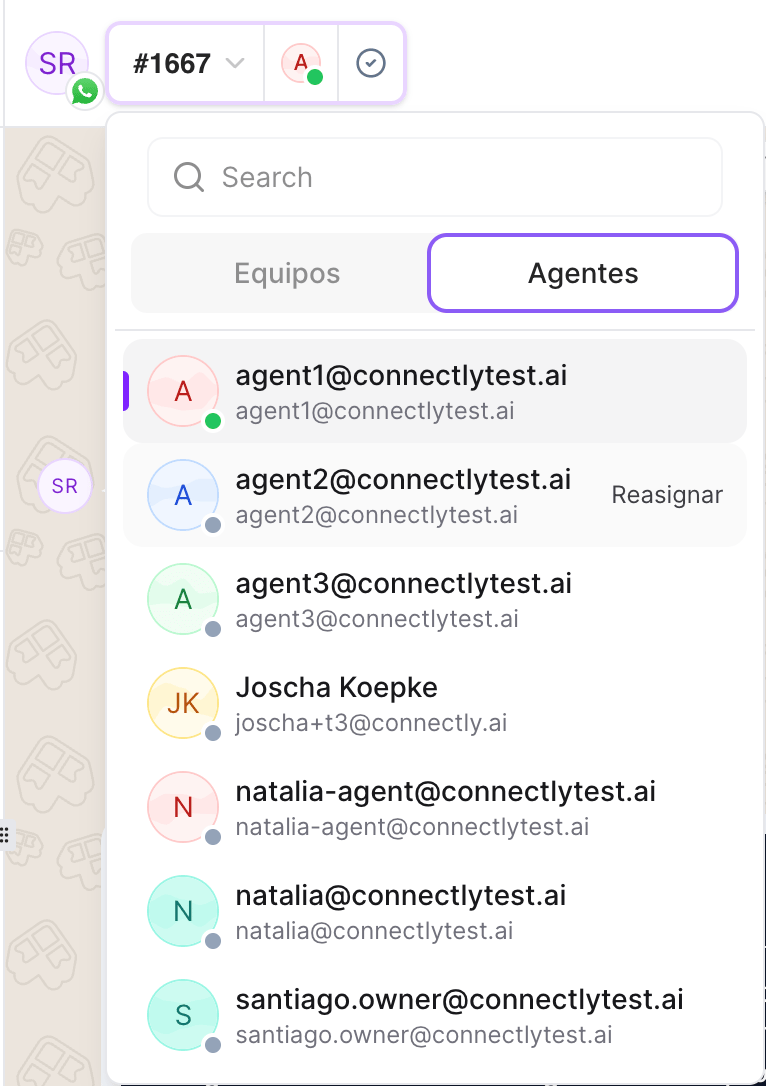
* **Assign to me** — take the ticket yourself. If you belong to teams, you may be asked
to route it to one of them.
* **Assign to someone else** — assign the ticket to another agent or a team.
* **Reassign** — hand an open ticket to a different agent or team.
 How tickets are automatically created and routed to agents or teams is covered in
[Ticket Routing](/inbox/ticket-routing).
## Resolve a ticket
Click **Mark as resolved** when the customer's issue is handled. Depending on your
business settings, you may be asked to add a **resolution reason** — this can be
optional or required. (Set which one in
[Ticket management & automation](/inbox/ticket-management).)
## Reopen a ticket
A resolved ticket can be reopened with **Reopen** if the customer comes back or the
issue isn't fully solved. A ticket also reopens automatically if you reply to a
resolved conversation.
There's no manual "close" button — tickets move from resolved to closed
automatically based on your closure settings. Closing a ticket is what generates its
AI summary (below).
## Ticket topics
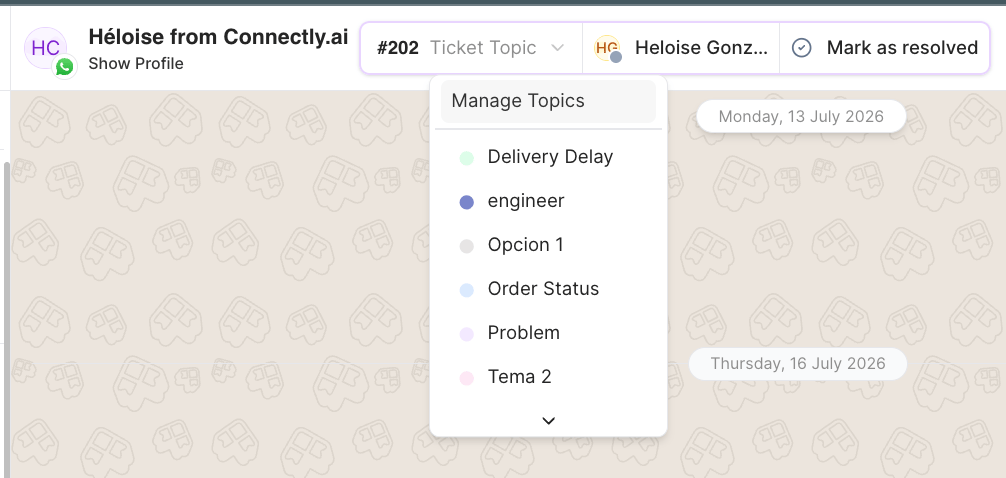
Assign a **topic** to categorize what the ticket is about. Topics can be optional or
required — manage the available topics in [Topics & tags](/inbox/topics-and-tags).
How tickets are automatically created and routed to agents or teams is covered in
[Ticket Routing](/inbox/ticket-routing).
## Resolve a ticket
Click **Mark as resolved** when the customer's issue is handled. Depending on your
business settings, you may be asked to add a **resolution reason** — this can be
optional or required. (Set which one in
[Ticket management & automation](/inbox/ticket-management).)
## Reopen a ticket
A resolved ticket can be reopened with **Reopen** if the customer comes back or the
issue isn't fully solved. A ticket also reopens automatically if you reply to a
resolved conversation.
There's no manual "close" button — tickets move from resolved to closed
automatically based on your closure settings. Closing a ticket is what generates its
AI summary (below).
## Ticket topics
Assign a **topic** to categorize what the ticket is about. Topics can be optional or
required — manage the available topics in [Topics & tags](/inbox/topics-and-tags).
 ## Pause and resume automations
The action bar has an **Automations** toggle for the conversation:
* **Automations active** — automated messages and Sofia AI can run in this
conversation.
* **Automations paused** — automations are held while a human handles the conversation.
The toggle is disabled while a ticket is open; the tooltip tells you what to do to
re-enable it (for example, *Resolve ticket to enable automations*). When Sofia AI is
involved, its status (active or paused) is shown alongside the toggle. When paused
automations resume is controlled by your
[Automation resume timing](/inbox/ticket-management) setting.
## The AI summary
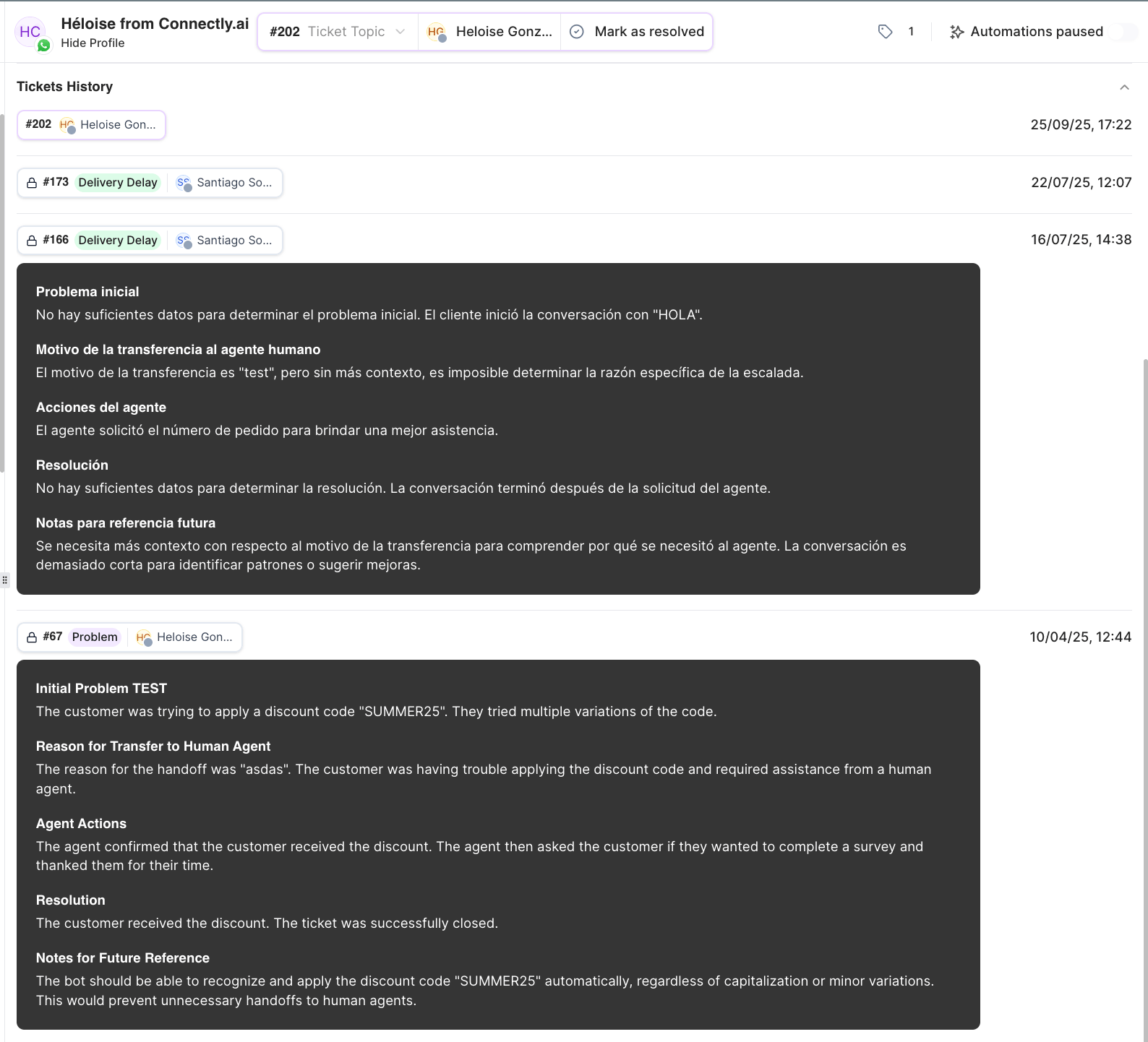
When a ticket **closes**, Connectly generates an **AI summary** of the conversation and
shows it inline in the chat thread. You'll also find each ticket's summary in the
customer panel under [ticket history](/inbox/customer-panel).
The summary condenses the conversation into clear sections — such as the customer's
initial problem, why it was escalated to a human, the actions the agent took, how it was
resolved, and notes for future reference — so anyone reviewing the ticket later gets the
full story at a glance.
## Pause and resume automations
The action bar has an **Automations** toggle for the conversation:
* **Automations active** — automated messages and Sofia AI can run in this
conversation.
* **Automations paused** — automations are held while a human handles the conversation.
The toggle is disabled while a ticket is open; the tooltip tells you what to do to
re-enable it (for example, *Resolve ticket to enable automations*). When Sofia AI is
involved, its status (active or paused) is shown alongside the toggle. When paused
automations resume is controlled by your
[Automation resume timing](/inbox/ticket-management) setting.
## The AI summary
When a ticket **closes**, Connectly generates an **AI summary** of the conversation and
shows it inline in the chat thread. You'll also find each ticket's summary in the
customer panel under [ticket history](/inbox/customer-panel).
The summary condenses the conversation into clear sections — such as the customer's
initial problem, why it was escalated to a human, the actions the agent took, how it was
resolved, and notes for future reference — so anyone reviewing the ticket later gets the
full story at a glance.