> ## Documentation Index
> Fetch the complete documentation index at: https://docs.connectly.ai/llms.txt
> Use this file to discover all available pages before exploring further.
# The customer panel
> View and edit a customer's profile, add notes, and review their ticket history — all beside the conversation 👤
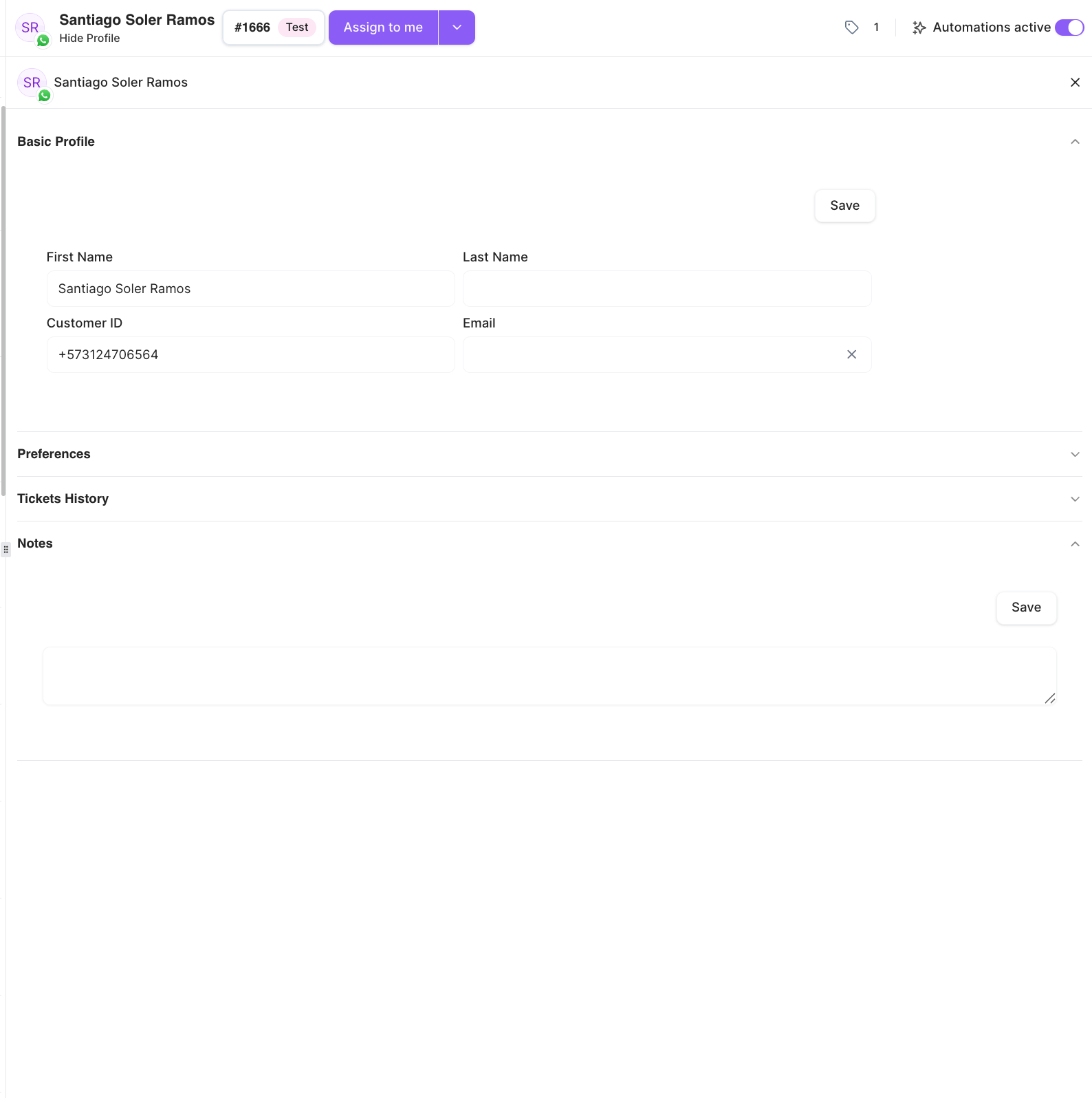
The customer panel is the right-hand panel of a conversation. It shows who you're
talking to and lets you keep their details and notes in one place. Toggle it with
**Show Profile** / **Hide Profile** in the conversation's action bar.
The panel is organized into sections:
 ## Basic Profile
The customer's core details, which you can edit and save:
* **First Name**
* **Last Name**
* **Customer ID** — the customer's phone number (or `@username` for WhatsApp contacts
who hide their phone).
* **Email**
Edit any field and save your changes. If you enter a value starting with `+` in
Customer ID, it's validated as a phone number.
## Notes
**Notes** is a shared free-text field for anything your team should know about this
customer. Type your note and save it.
Notes are a single shared field on the customer's profile — they're visible to
everyone on your team who opens this customer, not private to you. There's no
separate list of individual notes; you're editing one shared note.
## Tickets History
A read-only list of the customer's past tickets. Each entry shows the ticket number,
date, status, topic, who it was assigned to, and its
[AI summary](/inbox/managing-tickets). Click an entry to jump to where that ticket
started in the conversation.
## Shopify Profile
If the customer is connected to a Shopify channel, this section shows their Shopify
details — **Name**, **Email**, **ID**, **Last Order**, **Total Spent**, and **Total
Orders**. You can also use **Update Shopify Profile** to search Shopify (by ID, last
order number, or email) and link the right customer record.
## Preferences
This section is reserved for future use — it currently shows *No preferences for now*.
Applying **tags**, **assigning an agent**, and toggling **automations** are done from
the conversation's action bar, not this panel. See
[Working a conversation](/inbox/working-a-conversation) and
[Managing tickets](/inbox/managing-tickets).
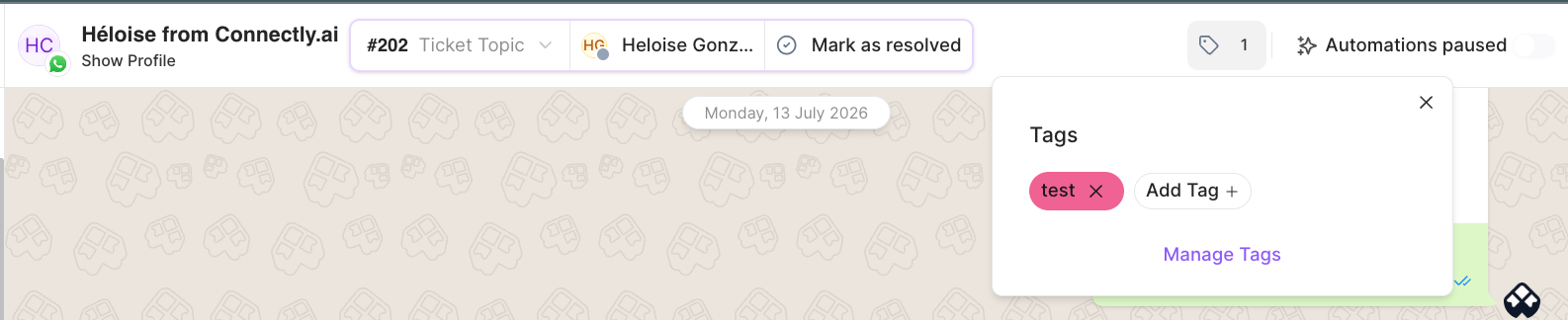
For example, tags are applied from a popover in the action bar, where you can add,
create, and manage them:
## Basic Profile
The customer's core details, which you can edit and save:
* **First Name**
* **Last Name**
* **Customer ID** — the customer's phone number (or `@username` for WhatsApp contacts
who hide their phone).
* **Email**
Edit any field and save your changes. If you enter a value starting with `+` in
Customer ID, it's validated as a phone number.
## Notes
**Notes** is a shared free-text field for anything your team should know about this
customer. Type your note and save it.
Notes are a single shared field on the customer's profile — they're visible to
everyone on your team who opens this customer, not private to you. There's no
separate list of individual notes; you're editing one shared note.
## Tickets History
A read-only list of the customer's past tickets. Each entry shows the ticket number,
date, status, topic, who it was assigned to, and its
[AI summary](/inbox/managing-tickets). Click an entry to jump to where that ticket
started in the conversation.
## Shopify Profile
If the customer is connected to a Shopify channel, this section shows their Shopify
details — **Name**, **Email**, **ID**, **Last Order**, **Total Spent**, and **Total
Orders**. You can also use **Update Shopify Profile** to search Shopify (by ID, last
order number, or email) and link the right customer record.
## Preferences
This section is reserved for future use — it currently shows *No preferences for now*.
Applying **tags**, **assigning an agent**, and toggling **automations** are done from
the conversation's action bar, not this panel. See
[Working a conversation](/inbox/working-a-conversation) and
[Managing tickets](/inbox/managing-tickets).
For example, tags are applied from a popover in the action bar, where you can add,
create, and manage them: