> ## Documentation Index
> Fetch the complete documentation index at: https://docs.connectly.ai/llms.txt
> Use this file to discover all available pages before exploring further.
# Ticket Topics & Conversation Tags
> Manage the topics for your chatroom and the tags for your conversations, so your team stays organized ⚙️
Topics and tags are how your team keeps the inbox organized. You manage both in **Settings → Inbox**, each in its own section.
## Ticket Topics
> Manage topics for your chatroom
**Ticket Topics** are the categories your team uses to describe what a ticket is about.
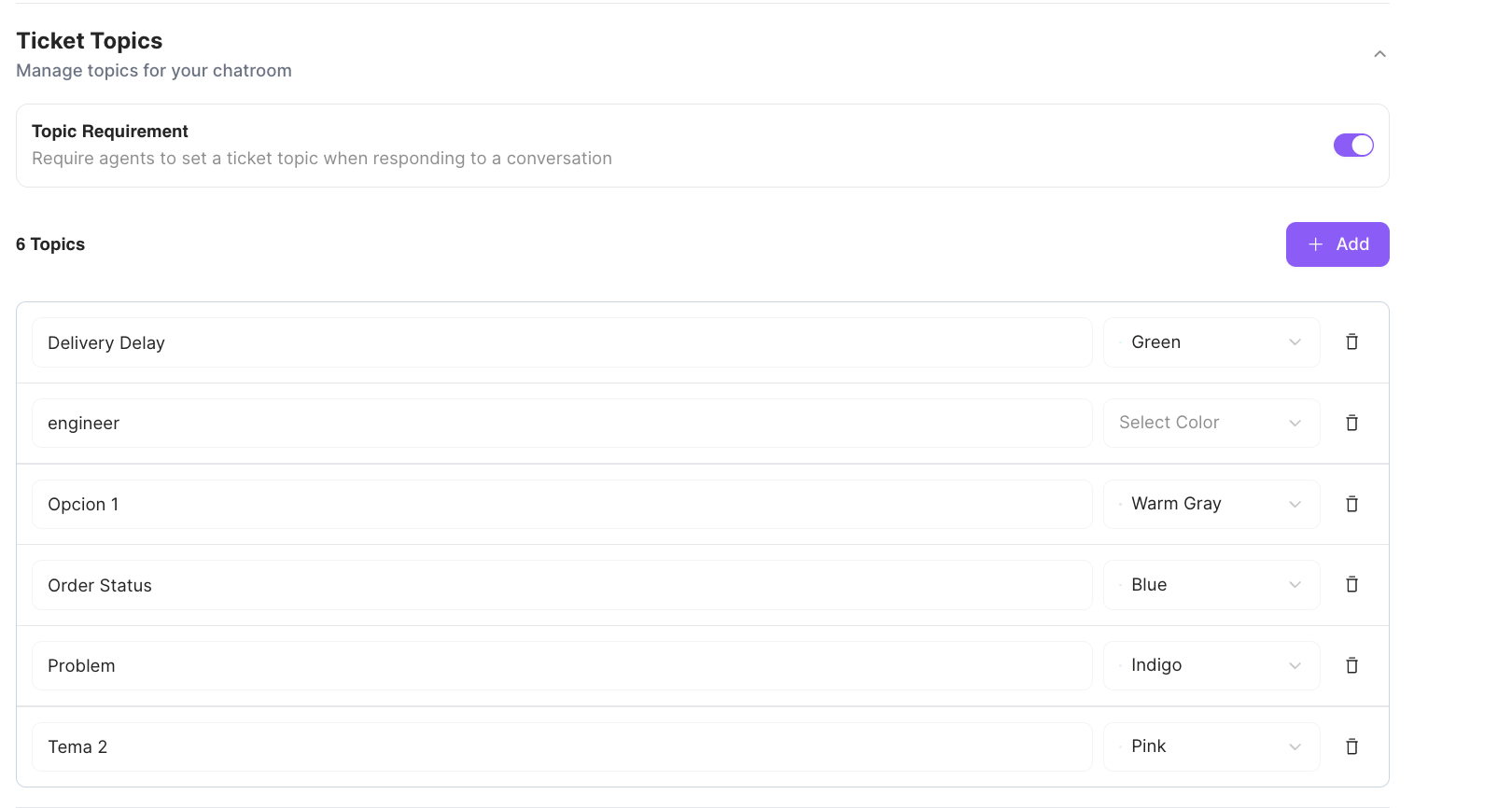 ### Managing topics
* **Topic Requirement** — turn this on to require agents to set a ticket topic when responding to a conversation.
* **Add a topic** with **+ Add**, then give it a **name** and a **color**.
* Edit a topic's name or color inline, or remove it with the trash icon.
### Why they matter
Topics turn a pile of individual tickets into something you can make sense of. When every ticket is categorized, you can see what your customers are actually contacting you about — which questions come up most, which issues are growing, and where your team is spending its time. That makes it easier to prioritize, staff, and improve the parts of your product or service that generate the most tickets.
## Conversation Tags
> Manage tags for conversations
**Conversation Tags** are labels your team applies to conversations to organize and find them.
### Managing topics
* **Topic Requirement** — turn this on to require agents to set a ticket topic when responding to a conversation.
* **Add a topic** with **+ Add**, then give it a **name** and a **color**.
* Edit a topic's name or color inline, or remove it with the trash icon.
### Why they matter
Topics turn a pile of individual tickets into something you can make sense of. When every ticket is categorized, you can see what your customers are actually contacting you about — which questions come up most, which issues are growing, and where your team is spending its time. That makes it easier to prioritize, staff, and improve the parts of your product or service that generate the most tickets.
## Conversation Tags
> Manage tags for conversations
**Conversation Tags** are labels your team applies to conversations to organize and find them.
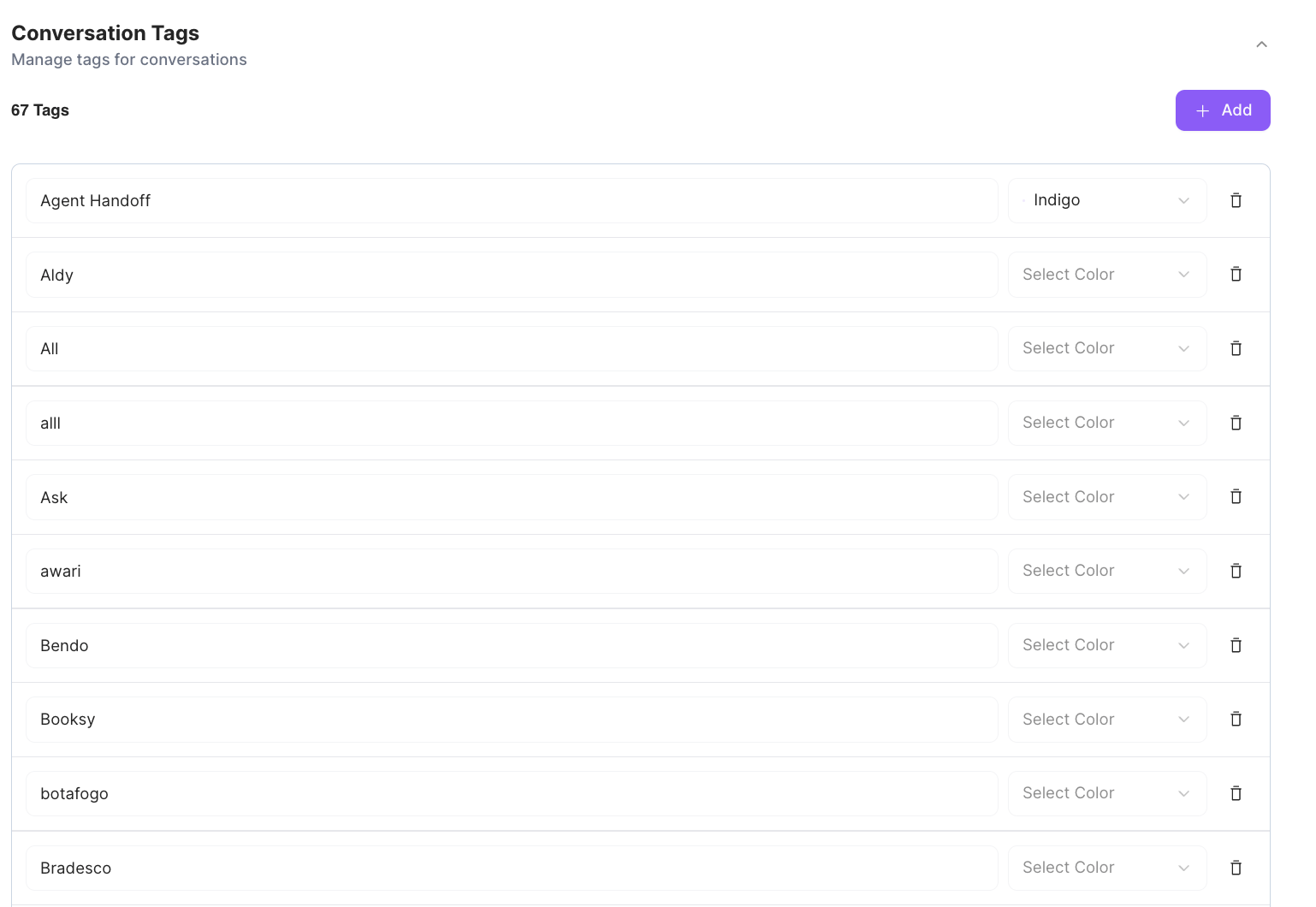 ### Managing tags
* **Add a tag** with **+ Add**, then give it a **name** and a **color**.
* Edit a tag's name or color inline, or remove it with the trash icon.
* Unlike ticket topics, tags have **no requirement toggle** — applying them is always optional.
### Why they matter
Tags give you a flexible way to group conversations that belong together, even when they don't fit a single ticket category. Your team can use them to mark conversations for follow-up, flag noteworthy cases, or filter the inbox down to exactly the conversations they care about — keeping a high-volume inbox navigable instead of overwhelming.
### Managing tags
* **Add a tag** with **+ Add**, then give it a **name** and a **color**.
* Edit a tag's name or color inline, or remove it with the trash icon.
* Unlike ticket topics, tags have **no requirement toggle** — applying them is always optional.
### Why they matter
Tags give you a flexible way to group conversations that belong together, even when they don't fit a single ticket category. Your team can use them to mark conversations for follow-up, flag noteworthy cases, or filter the inbox down to exactly the conversations they care about — keeping a high-volume inbox navigable instead of overwhelming.